


There are 2 big reasons to use FlyingPress.
It beats other cache plugins like WP Rocket when you compare their features/optimizations (and has for a while if you also compare their changelogs). It’s also #1 for optimizing web vitals.
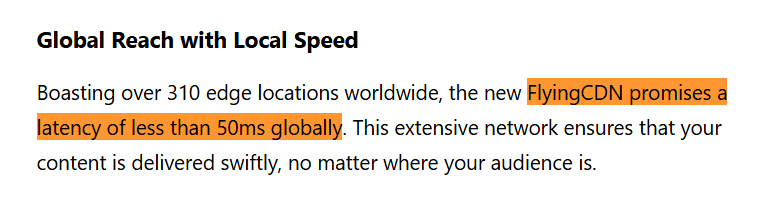
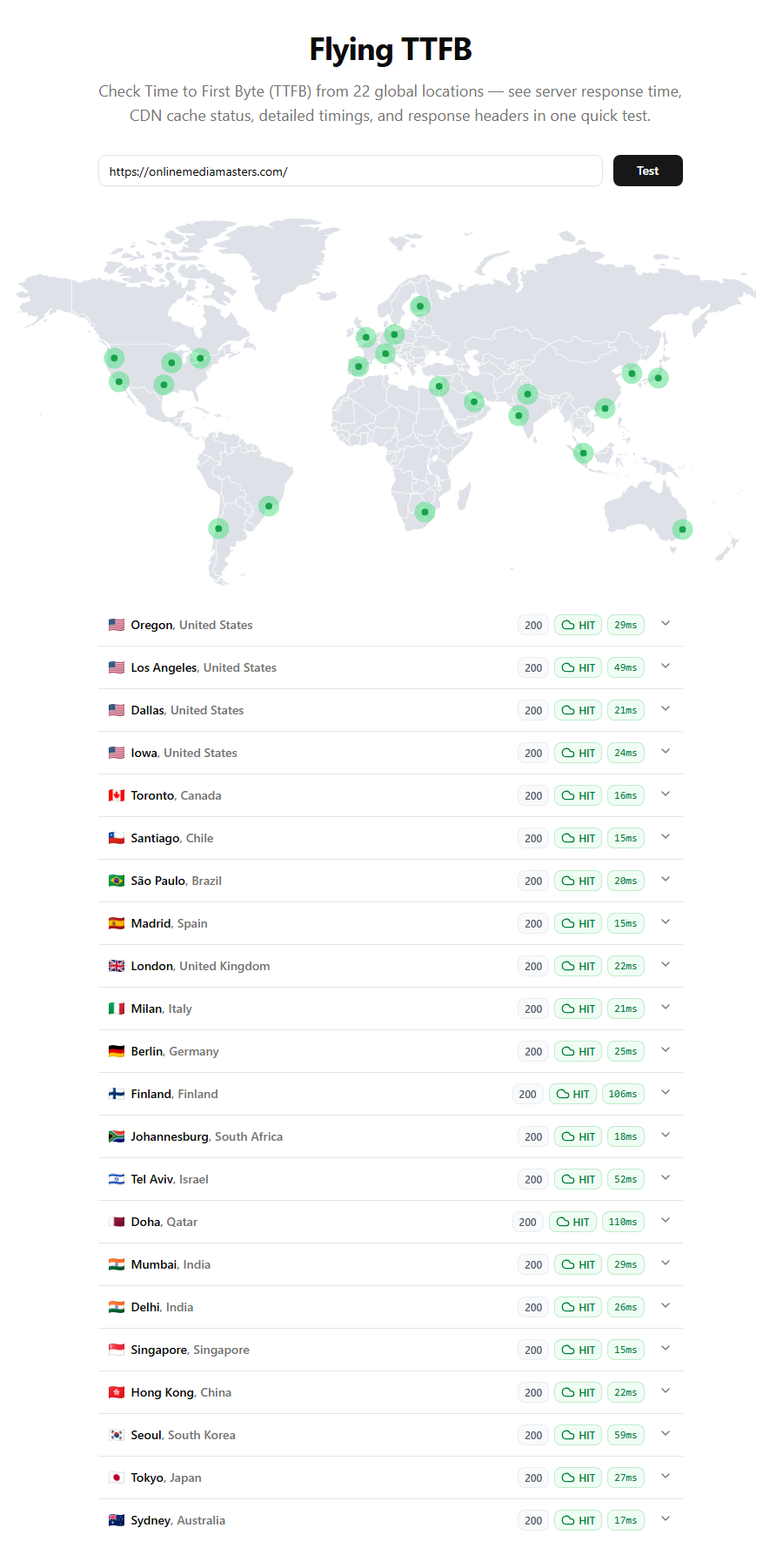
Second, FlyingCDN’s Cloudflare Enterprise lets you use any host you want and promises a 50ms global latency (a big reason why my TTFB is so fast). Which means you’re not stuck with Cloudways/Rocket.net who offer Cloudflare Enterprise, but overcharge for subpar performance. I left both for ScalaHosting’s VPS who uses faster CPUs/RAM/storage but the choice is yours now.
Here’s the checklist: configure FlyingPress, keep Perfmatters for the script manager and possibly other settings not supported by FlyingPress (or give you more control such as lazy loading), replace your CDN with FlyingCDN (if you’re moving hosts, do this beforehand), and join the FlyingPress + WP Speed Facebook group to get updates from Gijo (FlyingPress creator).
Use the docs to follow along.
1. Dashboard
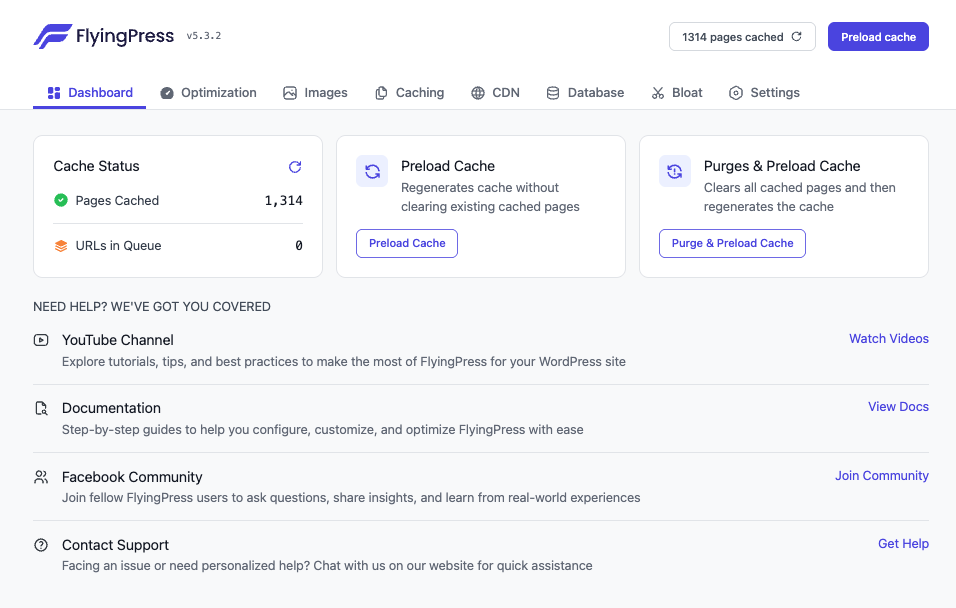
- Preload cache: regenerates cache without clearing existing pages.
- Purge pages and preload: clears all existing pages (consumes more resources).
2. Optimization
CSS & JavaScript
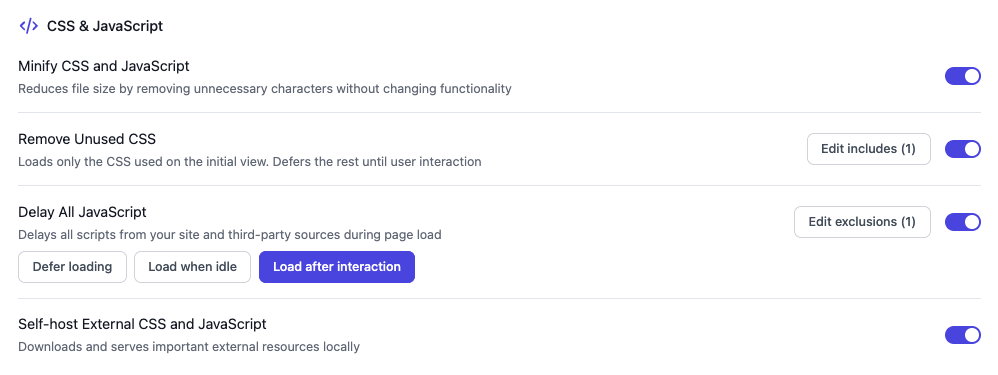
- Minify CSS & JavaScript: On – always on for small sites, large sites should test it.
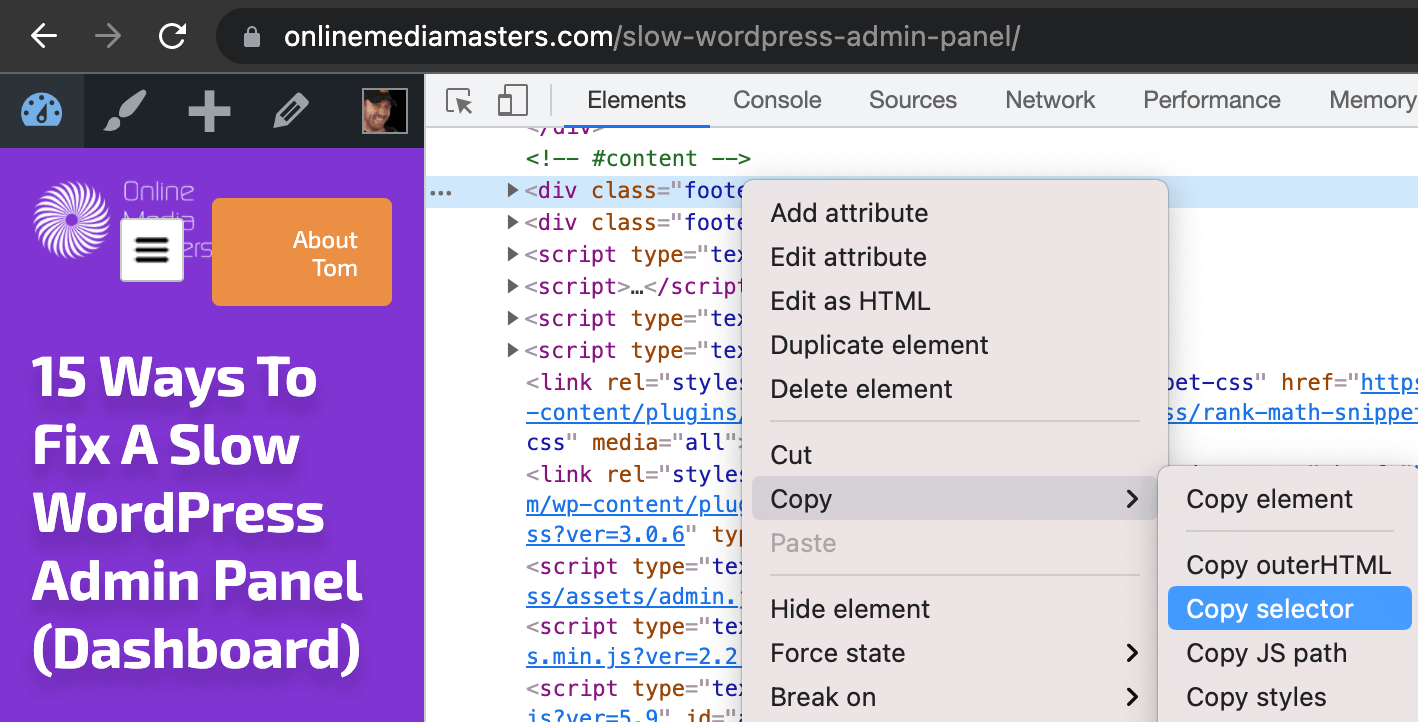
- Remove unused CSS: On – before enabling, add Perfmatters’ common unused CSS exclusions to help prevent your site from breaking especially when using page builders like Elementor/Divi. Now enable it, and if something breaks, right click your site → view page source → copy the CSS selector causing problems → exclude it. If FlyingPress isn’t detecting certain CSS selectors to include in used CSS, add them here (e.g. cookie-notice).
- Delay all JavaScript: On – the first step is to add Perfmatters’ common JS delay exclusions under “Edit Exclusions” to help prevent a broken site while testing the next settings. More aggressive settings have a higher chance of a broken site. If this happens, either exclude that script or use a less aggressive setting. The goal is to delay JavaScript loading below the fold (e.g. specific plugins) or if it’s not needed immediately (e.g. visual enhancements, analytics tracking). Avoid delaying anything if it’s loading features visitors should see immediately (e.g. your menu, cookie notice, or core page builder/Woo scripts).
- Defer loading: least aggressive and you’ll want to exclude hooks.min.js + i18n.min.js.
- Load when idle: best performance/UX balance (recommended) with more control. This loads JavaScript after the browser becomes idle and stops rendering everything.
- Load third-party scripts on interaction: On – some domains are delayed by default but there may be more. Test multiple pages/posts in PSI especially if they load different plugins/layouts and consider delaying them in the next setting. You shouldn’t need to exclude anything since FlyingPress’ default domains seem safe.
- Delay specific scripts on interaction: manually delay other third-party domains or self-hosted JavaScript (only if it loads below the fold which may also be giving you “removed unused JavaScript” PSI errors). These can be visual enhancements (sliders, galleries, animations), marketing features (reviews, testimonials, popups, chat) or simply non-critical plugins (social sharing, TOC, related posts, comments). You should ideally use the Chrome Dev Tools coverage report for this. Don’t delay fonts, menus, payments, and other features that are critical or load above the fold.
- Load after interaction: most aggressive and should only be used on very simple sites (no WooCommerce or page builders). Some features won’t work because the JS is still delayed until the user interacts (scroll, click, tap, keypress, etc) and can break your site if not excluded properly. But it does beat the other options for full-blown performance.
Third-party domains FlyingPress delays by default:
cdn.jsdelivr.net
cdnjs.cloudflare.com
unpkg.com
code.jquery.com
ajax.googleapis.com
use.fontawesome.com
bootstrapcdn.com
cdn.rawgit.com
*There may be others not specified in documentation
Other third-party domains to consider delaying (check your PSI report):
Core List
googletagmanager.com
google-analytics.com
googleoptimize.com
adsbygoogle.js
xfbml.customerchat.js
fbevents.js
widget.manychat.com
cookie-law-info
grecaptcha.execute
static.hotjar.com
hs-scripts.com
embed.tawk.to
disqus.com/embed.js
client.crisp.chat
matomo.js
usefathom.com
code.tidio.co
metomic.io
js.driftt.com
cdn.onesignal.com
clarity.ms

Analytics
gtag/js
analytics.js
ga.js
clarity.ms
hotjar.com
static.hotjar.com
script.hotjar.com
plausible.io
matomo.cloud
mixpanel.com
segment.com

Ads (Caution)
googleadservices.com
googlesyndication.com
doubleclick.net
adservice.google.com
adsbygoogle.js
amazon-adsystem.com

Social
connect.facebook.net
facebook.com/tr
fbq(
snap.licdn.com
platform.linkedin.com
platform.twitter.com
syndication.twitter.com
instagram.com/embed
platform.instagram.com
tiktok.com/embed.js
pinterest.com
redditstatic.com

Chat
tawk.to
embed.tawk.to
crisp.chat
client.crisp.chat
intercom.io
widget.intercom.io
js.driftt.com
drift.com
zendesk.com
static.zdassets.com
livechatinc.com

Marketing + Popus
optinmonster.com
convertbox.com
convertkit.com
chimpstatic.com
mailchimp.com
activecampaign.com
klaviyo.com
getresponse.com

Video Players
player.vimeo.com
vimeo.com
fast.wistia.com
fast.wistia.net
wistia.com

Slider + Animation Libraries
swiperjs.com
greensock.com
gsap.com
- Self-host external CSS and JavaScript: further reduces impact of third-party code by self-hosting CSS/JavaScript from these third-party domains (can add more using a filter).
3. Images
Images, Videos, & IFrames
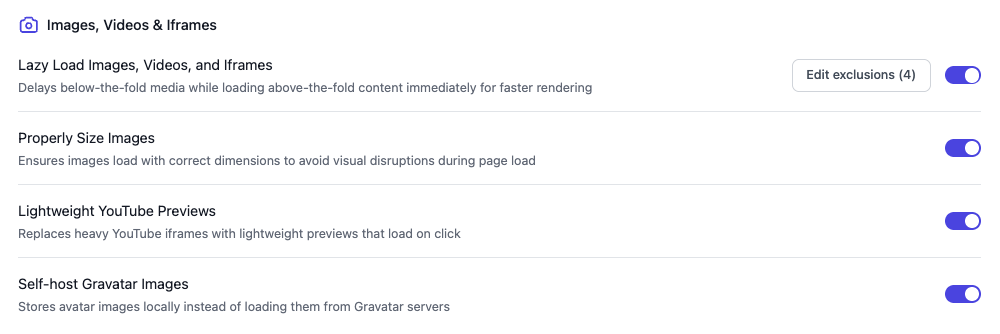
- Lazy load images, videos, and iframes: On – lazy loads media below the fold and automatically excludes it if loading above the fold (improving LCP). If your PSI report shows LCP errors from images lazy loading when they shouldn’t, manually add those images under Exclusions. And if you’re still struggling lazy loading errors in PSI, disable FlyingPress’ lazy loading and try Perfmatters’ lazy loading which gives you more control.
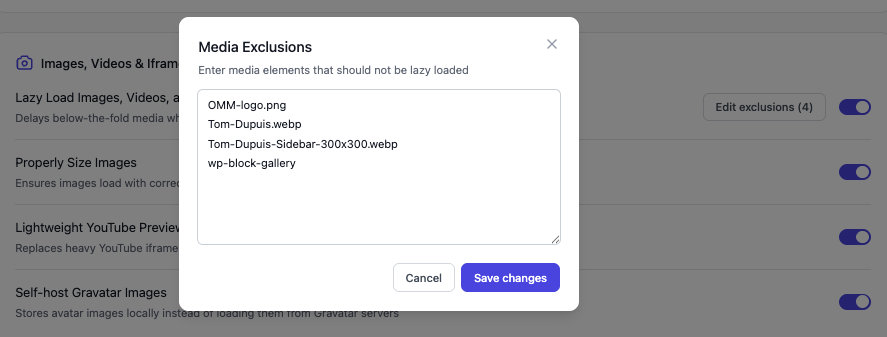
- Properly size images: On – adds missing width + height attributes to images (PSI item).
- Lightweight YouTube videos: On – self-hosts YouTube thumbnails so when you embed them on your site, they’re not loading YouTube’s JavaScript (eliminates third-party code from i.ytimg.com). This also means thumbnails can be cached and served from your CDN.
- Self-host Gravatar images: On – same idea as previous setting only with comments loading from gravatar.com/avatar. This is huge for blogs with many comments like mine.
Fonts
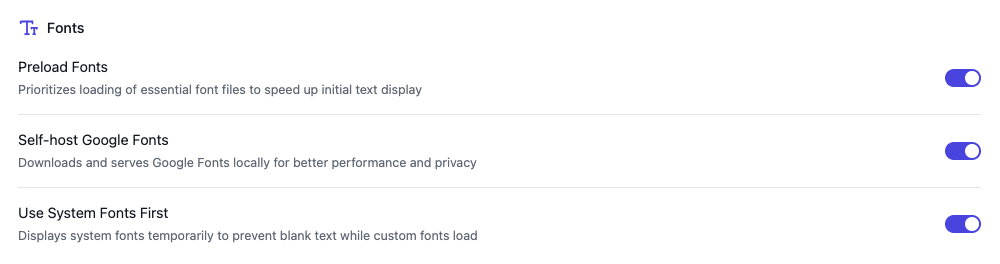
- Preload fonts: loads critical fonts early so they’re not stuck loading (improving LCP) or shifting around the page (improving CLS by avoiding a flash of invisible or unstyled text).
- Self-host Google Fonts: On – hosts fonts locally to avoid third-party requests from fonts.gstatic.com + fonts.googleapis.com which would otherwise show up as PSI errors.
- Use system fonts first: On – system fonts are shown before they’re swapped for your font. This further improves CLS by avoiding a flash and fixes “ensure text remains visible during webfont load” in PSI. After enabling these 3 settings, check your site to see how fonts look.
Rendering

- Lazy render elements: On – similar to lazy loading images only for other elements on your site loading below the fold (page builder sections + containers, Gutenberg blocks, sidebar, comments, footer, contact form, related posts/products are common examples).
3. Images
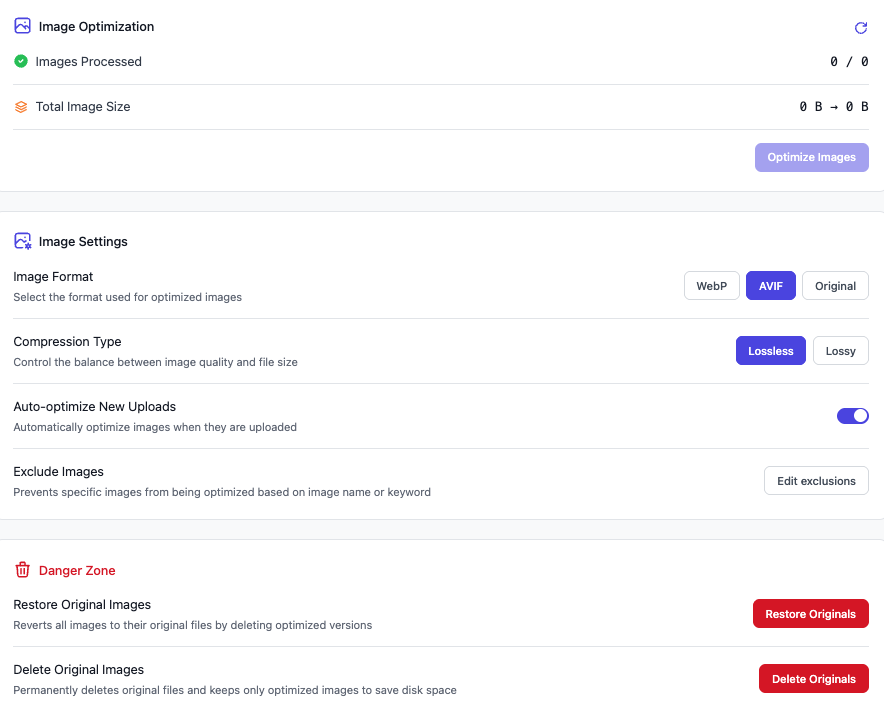
- Optimize Images: button will be gray if images are already optimized, but if not, it will bulk optimize them (configure the settings below and backup your site before you do it). In the danger zone, you can restore original images or delete originals to save disk space.
- Image format: AVIF – better compression than WebP with smaller file sizes, supports HDR, and supported by all major browsers (which previously wasn’t the case but is today).
- Compression type: Lossless – maintains original quality while avoiding quality loss risk.
- Auto-optimize new uploads: On – new uploads only (still need to optimize other images).
- Exclude Images: add keywords or attachment IDs for images that shouldn’t be optimized.
4. Caching
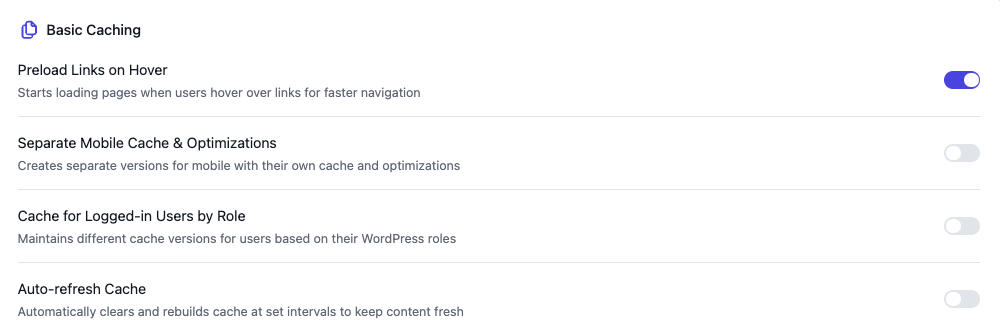
- Preload links on hover: On, but consider using Perfmatters’ speculative loading instead. FlyingPress’ is similar to instant page (when users hover over a link, the page is preloaded so when they actually click it, it appears to load near instantly). While speculative loading preloads in advance before any UI interaction even happens. Neither improves scores but significantly improves perceived load time. It also means if users hover over lots of links (like a WooCommerce site with tons of image links), lots of pages will be preloaded which can stress (mostly shared) servers. Basically, I wouldn’t enable this if your hosting sucks.
- Separate mobile cache & optimizations: Off – only use if you have mobile-only content, like a mobile menu plugin. But leave this disabled if you’re just using a responsive theme.
- Cache for logged-in users by role: Off – only use if you have logged-in users (bbPress) with user-specific content (but keep in mind it will increase resource usage). If it’s turned on and you have custom login + logout pages, make sure they’re excluded from the cache.
- Auto-refresh cache: Off – rebuilds cache at specific time intervals (useful for a site that changes frequently) but it would be more efficient to do it programmatically via triggers.
Advanced Caching
Simple (static) sites usually don’t need to do anything here, but highly dynamic sites like WooCommerce/membership sites should exclude specific pages, query parameters, and cookies from being cached (keep in mind wp-admin is already excluded by default).
- Exclude pages from cache: use when pages show user-specific content (examples).
- Separate cache for query parameters: use when a query string changes the page’s content and layout. See their list of default query strings excluded before adding more.
- Bypass cache for cookies: use when users can have a “special state” that changes what the page shows (they’re logged into your site, have an active cart, the language changes).
Common Pages To Exclude
WooCommerce
/cart/
/checkout/
/my-account/
/order-received/
/addons/
/wishlist/
/compare/

Membership/Account
/login/
/register/
/logout/
/account/
/dashboard/
/profile/
/members/

LMS (only if content is user-progress dependent)
/courses/
/lessons/
/topics/
/quizzes/

Dynamic Forms/Results
/quote/
/apply/
/submission/
/results/
Common Query Parameters To Exclude
WooCommerce
add-to-cart
wc-ajax
wc-api
edd_action

Search/Filters
search
filter
filter_
query_type_
sort
orderby
min_price
max_price
rating_filter
Common Cookies To Exclude
WooCommerce
woocommerce_items_in_cart
woocommerce_cart_hash
wp_woocommerce_session_
woocommerce_recently_viewed
store_notice

Membership Plugins
mepr_user

WooCommerce Memberships
wc_memberships_
5. CDN
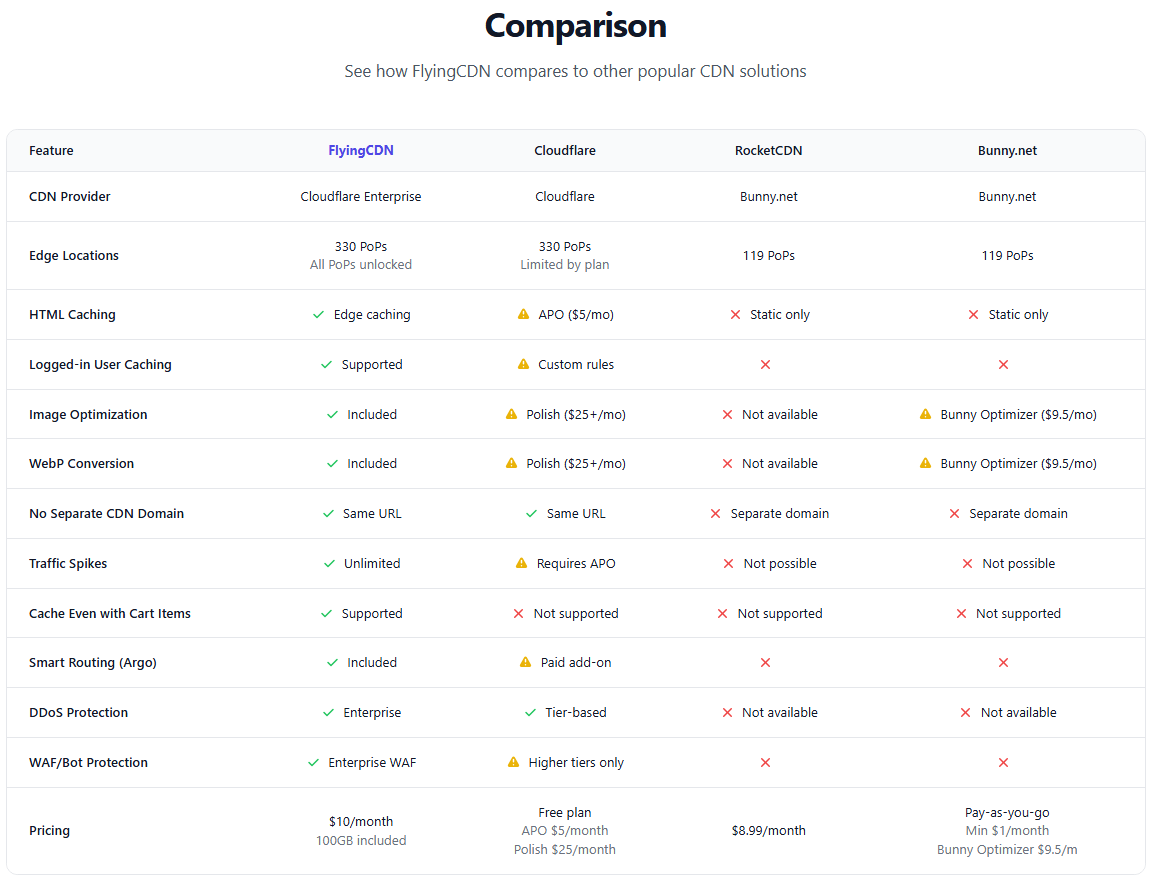
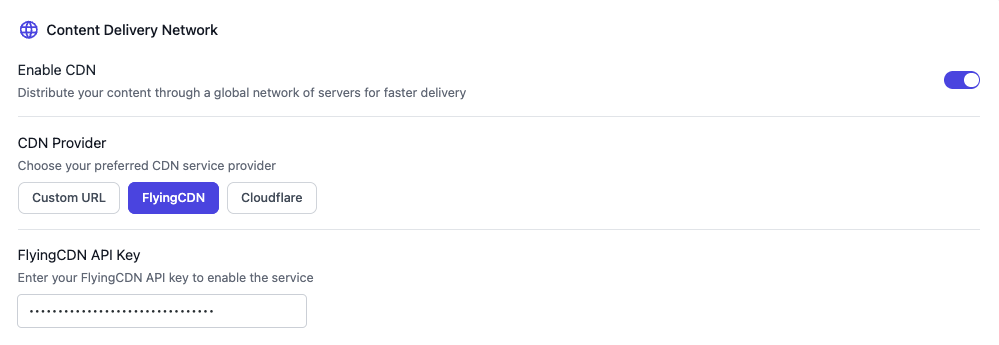
Every dynamic site should be using FlyingCDN IMO (or if you just want a really fast site).
It’s Cloudflare Enterprise (arguably the most powerful CDN) with all major features like Argo Smart Routing and an Enterprise WAF (both are huge for WooCommerce), and a 50ms global latency (faster TTFB) for $10/month for your first 100GB then $5/month for every 100GB after.
It’s better than Cloudways’ Cloudflare Enterprise which is limited and forces you to use their slow hosting. I’d say it’s on par with Rocket.net’s but lets you use any host you want so you’re not tied to their ‘not so fastest hosting’ which uses CPUs from 2013 and shared resources (only their $649/mo Enterprise plans are dedicated). It’s also night and day compared to Cloudflare integrations by Kinsta, WP Engine, SiteGround’s CDN (Google Cloud), and pretty much any host.
Instructions
6. Database
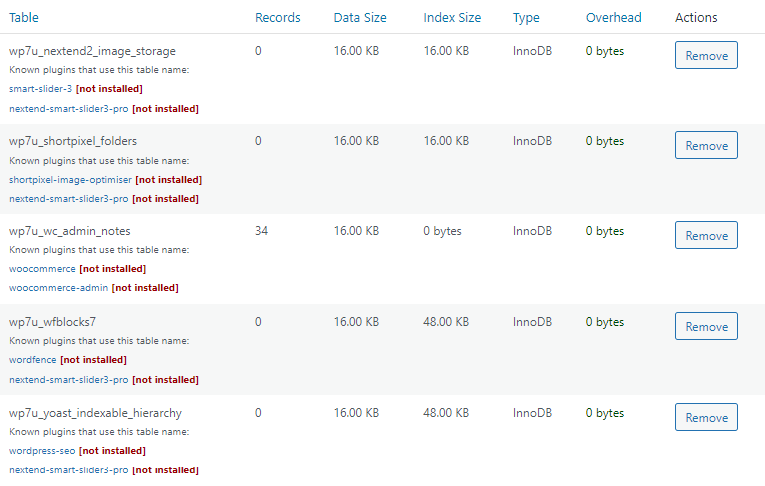
I prefer WP-Optimize for database cleanups since it has more settings, like backing up your database to cloud storage (UpdraftPlus), manually removing old tables from plugins you no longer use (photo below), and a few extra cleanup settings like deleting pingbacks/trackbacks.
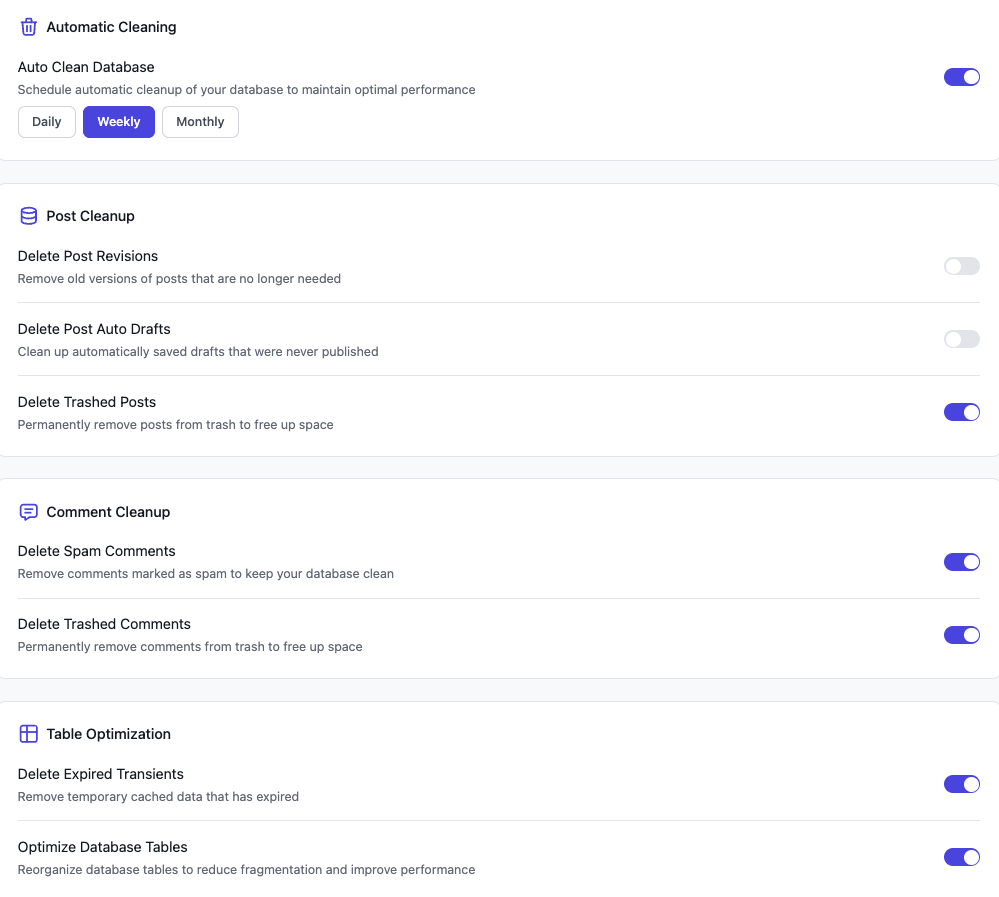
If I were to use FlyingPress, I’d use these settings. I wouldn’t delete post revisions or auto drafts because I want backups of my old posts in case I need to reference my old content (but if you don’t, you can delete them too). See the definitions if you don’t know what they are.
7. Bloat
These reduce resource usage in your hosting. Many settings overlap with Perfmatters, so only enable them in 1 plugin. These are my settings but I use Perfmatters to limit Heartbeat (which lets me disable it when I’m not editing) and limit post revisions (because I need more than 3).
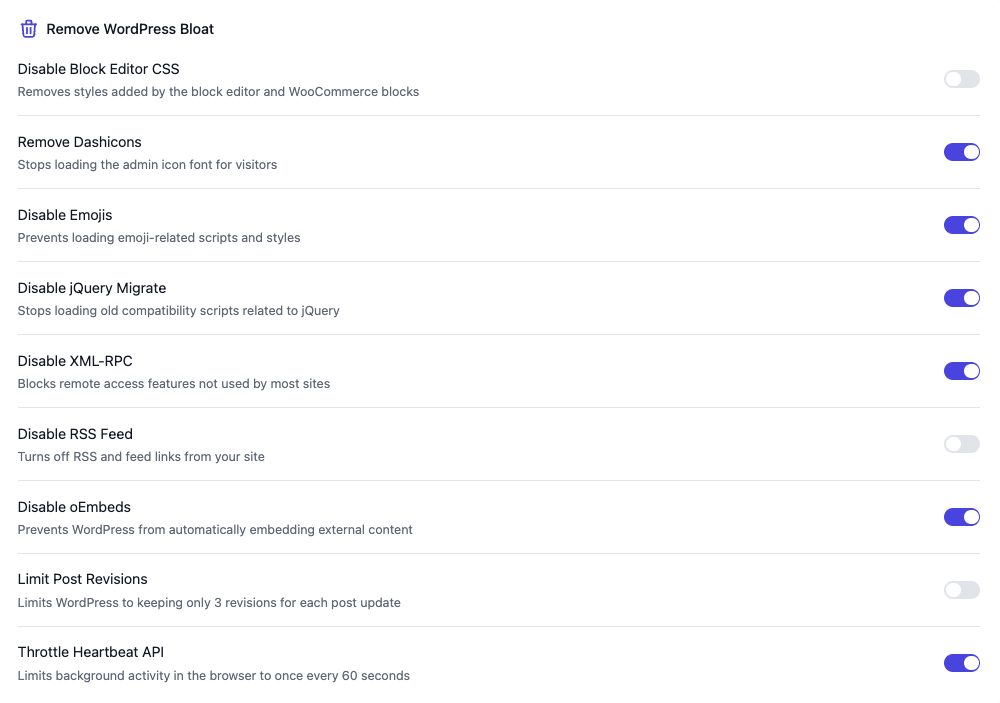
- Disable block editor CSS: Off if you use Gutenberg or WooCommerce, On if you don’t which removes unused CSS from Gutenberg’s block library and WooCommerce blocks.
- Disable dashicons: On – prevents admin icons from loading a CSS file on the frontend.
- Disable emojis: On – removes a JavaScript file needed for emojis (use Unicode instead).
- Disable jQuery migrate: Test – On if you use well-maintained themes/plugins and this doesn’t break your site, Off if you don’t. FlyingPress also delays code.jquery.com and the Perfmatters script manager can disable jQuery in certain areas of your site. This is how I recommend optimizing jQuery since disabling it completely will usually break your site.
- Disable XML-RPC: On – bad for speed + security (used to publish content from mobile).
- Disable RSS feed: Off – only on if your site doesn’t have a blog (redirects this to home).
- Disable oEmbeds: On – when you paste a URL into your WordPress editor, this loads a pretty preview (from YouTube, Facebook, Tweets, etc). If you don’t need this, turn it on.
- Disable WP Cron: On – replacing WP cron with a real cron job is a classic way to reduce resource/CPU usage. Start by enabling this, then set up a real cron job (described below).
Setting up an external cron job can be different depending on your host (so find their instructions). In cPanel, you would open the cron jobs tab and set a cron job for every 10 minutes use the following line. You may think a higher interval uses less CPU, but this can actually cause spikes since too many jobs will run at the same time (see Gijo’s comment below).
wget -q -O - https://yourwebsite.com/wp-cron.php?doing_wp_cron >/dev/null 2>&1

- Limit post revisions: Depends – limits post revisions to 3 which is enough for some people, not enough for others (like me). If you want more options than 3, use Perfmatters.
- Throttle Heartbeat API: On – reduces Heartbeat to once every 60 seconds but again, I prefer Perfmatters for this which lets you disable it completely unless you’re editing posts.
8. Settings
Core Web Vitals Tracking: Depends – PageSpeed Insights only shows results 28 days old while this shows it in real-time. You would mainly use it to see whether a recent change helped or hurt performance (including on specific pages or different countries). But if you’re not making these changes, I prefer leaving it disabled because like any analytics tracking, it uses server resources.
9. Configure FlyingPress With Perfmatters
Perfmatters is still essential because it either:
- Includes features not supported by FlyingPress (specifically the script manager, speculative loading, additional bloat removal settings, and moving the wp-login URL).
- Has more control over specific settings (e.g. lazy loading, Heartbeat, post revisions).
General Settings – these are the same settings I use with new features enabled in blue or they’re located at the bottom. Due to more control, I also disabled Heartbeat to only allow when editing posts and limited post revisions to 15 (while disabling each one in FlyingPress).
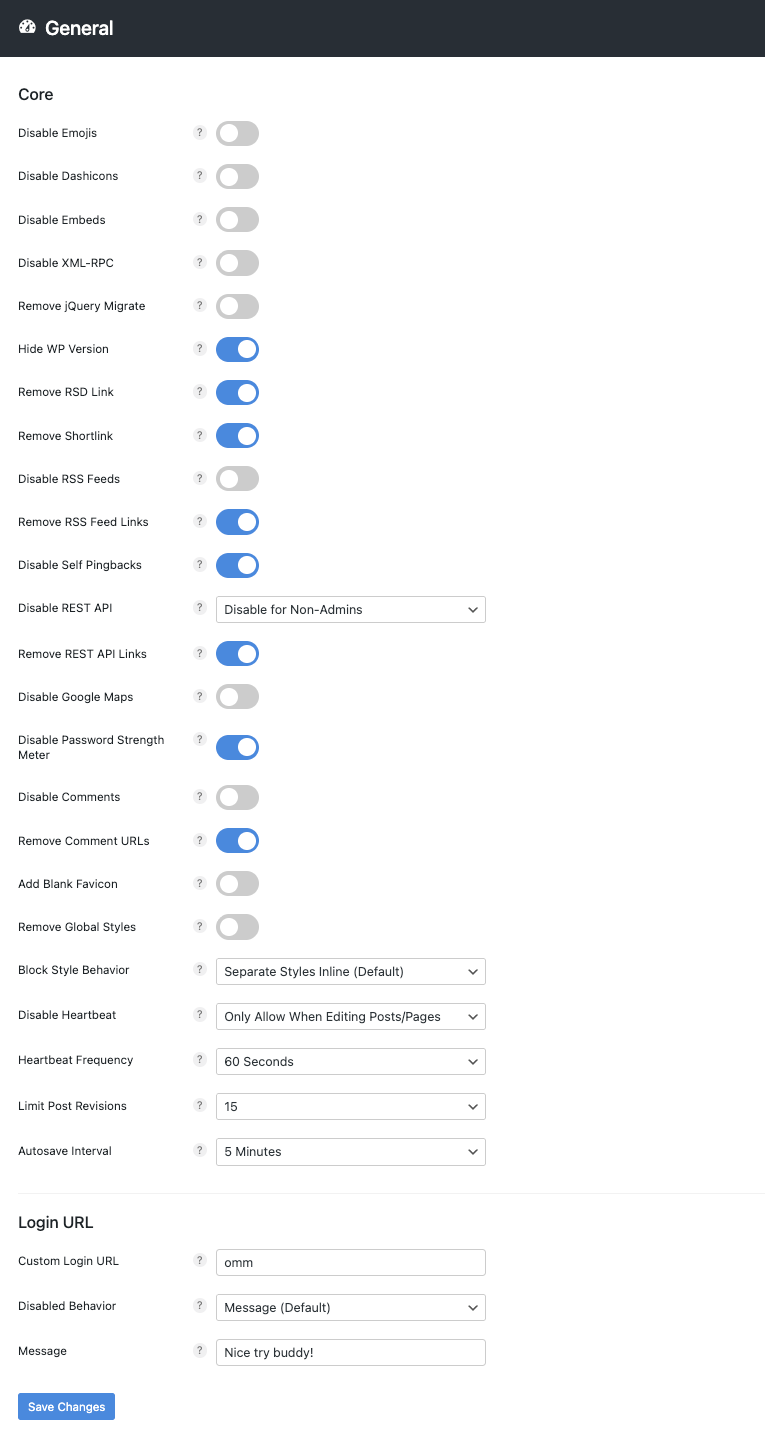
- Hide WP Version: ON – hides WP version from showing publicly to improve security.
- Remove RSD Link: ON – only off if you use a blog client to edit your site (not browser).
- Remove Shortlink: ON – only off if you’re using the “post name” permalink structure.
- Remove RSS Feed Links: ON – removes a small amount of unused code by removing (usually unnecessary) links in RSS feed to pages, posts, comments, categories, tags, etc.
- Disable Self Pingbacks: ON – stops annoying pingbacks when linking to your own blog.
- Disable REST API: disable for non-admins – only enable REST API for admins or logged-in users (like authors). Otherwise, disabling it can break functions in the editor especially in Gutenberg. It hides usernames of anyone who published on your site from a public URL.
- Remove REST API links: ON – removes a short line of unused code created by REST API.
- Disable Password Strength Meter: ON – removes a file that can sometimes load on your website when it should usually only load on account, checkout, and password reset pages.
- Remove Comment URLs: ON – stops comment spam by disabling links in author names.
- Remove Global Styles: Test – removes 311 lines of unminified code which seemed to be added by mistake to WordPress core, but enabling it can break your site as it did for mine.
- Block style behavior: separate styles inline– only change to “load global stylesheet” if using Perfmatters to remove unused CSS while also using the “file” method. FlyingPress loads used CSS inline in HTML in which case Perfmatters says to use separate styles inline.
- Heartbeat: only allow when editing posts/pages – recommended by Perfmatters. This disables Heartbeat unless you’re editing content, then set the Heartbeat Frequency to 60s.
- Limit Post Revisions: ~15 – gives you enough backups in case you need to restore a post to an earlier version while stopping too many revisions from adding bloat to the database.
- Autosave Interval: 5 minutes – increase the frequency to reduce CPU and save resources.
- Custom Login URL – move the wp-login page to stop bots/hackers from trying to login to your site (even if they fail, their attempts increase resource usage, so best to do it anyway).
Preload
- Fetch priority: fine tune what’s being fetched as high/low priority to fix LCP errors in PSI.
- Speculative Loading: ON – if enabled, disable “preload links on hover” in FlyingPress. This uses 78% less code than instant page and doesn’t create third-party library or HTTP requests, but it’s also only supported by 79% of browsers (not Safari, FireFox, and Brave).
- Mode: Prerender – instead of just downloading HTML, CSS, JavaScript, this renders nearly the entire page including executing JavaScript and rendering the DOM. It also uses more resources, so don’t use on bad hosting (e.g. shared hosting with low limits).
- Eagerness: Moderate – recommended. Eager results in fastest navigation, but uses too many resources (up to 10 links will be prerendered and up to 50 links prefetched).
Lazy Loading
- If you want more control of lazy loading, disable it in FlyingPress and use Perfmatters (enable lazy loading, preload critical images + excluding leading images (which are both usually 2-3 depending on how many load above the fold), and CSS background images.
Script Manager – enable the script manager in Assets settings, then view any page/post. Now click Perfmatters → Script Manager in your admin menu. View the script manager settings and enable test mode which only shows changes to logged-in admins and prevents your site from breaking during testing. But remember to disable this when you’re done to apply the changes. Also enable display dependencies which shows all plugins using jQuery, which is bad for speed.
Next, disable plugins or individual CSS/JS files on pages (or posts) where they don’t need to load. For example, if you only use a social sharing plugin on your blog, disable it “everywhere but posts.” Or disable contact forms everywhere but the contact page. You can also use regex.


10. Configure FlyingPress With SiteGround Optimizer
Are you really still using SiteGround? Read my SiteGround review and stop throwing your money down the toilet. This section is also out of date because it probably won’t solve the real issue, SiteGround. But yes, replacing SiteGround Optimizer with FlyingPress/Perfmatters helps.
Configure SiteGround Optimizer normally except:
- Disable file-based caching and browser caching.
- Use 1 plugin to disable emojis.
- Use 1 plugin to control Heartbeat.
- Use 1 plugin to clean your database.
- Use 1 plugin to minify/defer JavaScript.
- Use 1 plugin for lazy loading (I recommend FlyingPress).
- Use 1 plugin to preload fonts.
- Leave SG’s CSS settings off and use FlyingPress’ CSS settings with remove unused CSS.
Configure FlyingPress normally while taking advantage of these features:
- Bloat removal.
- Delay JavaScript.
- Remove unused CSS.
- Lazy render HTML elements.
- Preload links.
- Host Gravatars images locally
- Optimize Google Fonts to host them locally.
- Lazy load iframes and use placeholder images.
- Image optimizations (lazy load, add missing dimensions, preload critical images).
Questions? Drop me a comment.
Stop wasting time with WP Rocket + SiteGround Optimizer: flyingpress.com
You rock Gijo, keep up the great work and thanks for building the awesome community/plugins.
-Tom


