


Most people have Yoast, but few use it correctly.
This tutorial breaks Yoast down into 3 key steps: configuring the Yoast settings, researching long-tail focus keywords, and on-page SEO (beyond green lights). I will also show you a few other ways to improve SEO related to Yoast like adding publish dates to increase CTRs, submitting your Yoast XML sitemap to Search Console, fixing broken links, and adding schema.
Before reading this guide, install the Hide SEO bloat plugin which removes Yoast ads and update Yoast to the latest version. Finally, if you like this guide, be sure to check out my WordPress speed guide which has 450+ comments and helps improve your GTmetrix report.
Leave a comment if you have questions – I’m always listening!


Important Things To Know Before Using Yoast
People waste too much time trying to get green lights and not enough time on keyword research (or making their content better than whoever’s in the top results). Before you start, read these tips to avoid wasting your time which is seriously a big issue when people use Yoast.
- Don’t obsess over green lights (use my on-page SEO checklist instead).
- Don’t blindly select keywords – look for a long-tail (3+ word) phrase in Google Autocomplete, then Google it to see whether top results cover the topic extensively.
- Don’t stuff keywords in your text (or image alt text) to get green lights, that’s spammy!
- The most important places to use your focus keyword is in the page title, URL, SEO title, meta description, and once in the first couple sentences of the content body. That’s it!
- Yoast (and all SEO plugins) do very little for on-page SEO – most of it is advice. Spend more time on content and start focusing on making your content as helpful as possible.
1. General
Dashboard

Don’t click the button to enable Yoast indexables – there have been many complaints on their blog about this feature and it can really mess up your site. Keep an eye on their blog for updates.
Features

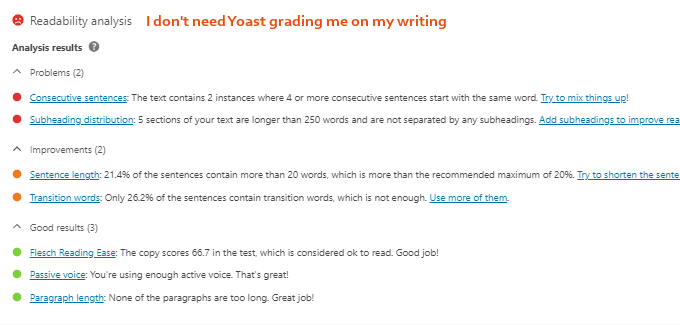
Below is a screenshot of each Yoast feature.
I disabled a few of them… I don’t use the Readability Analysis since I don’t need Yoast grading my content (eg. whether my sentences are too long). I use internal links naturally in my content and don’t need Yoast’s Text Link Counter reminding me to add them. I don’t need Ryte to constantly check whether my site is indexed in search engines (it obviously is), and I never use Yoast’s Admin Dropdown Menu. See what features you like, enable them, and disable the rest.




Webmaster Tools
Sign up for Google Search Console (most important) and use the HTML verification method to copy/paste your verification code. Do the same thing for Bing/Yandex/Baidu. Search Console is incredibly helpful. I recommend using it to find technical errors and monitor rankings and CTRs.

Verify Webmaster Tools
- Sign up for Google Search Console
- Select the HTML tag verification method
- Copy the code and paste into the Google Search Console field
- Delete everything outside of the quotations (including the quotations)
- Save changes in Yoast
- Click “Verify” in Google Search Console
- Repeat for Bing / Yandex (Russia’s largest search engine)
- I do not use Baidu Webmaster Tools since it’s confusing as I don’t read Chinese, and you need a Chinese phone number, but you can read this tutorial if you want to try
Submit Your Yoast XML Sitemap To Google
- In Yoast, go to General → Features → XML Sitemaps
- Click the question mark icon by the XML Sitemaps option
- Click your XML Sitemap link
- Copy the last past of the URL: /sitemap_index.xml
- Login to Google Search Console
- On the left side of the dashboard, go to Sitemaps
- Paste the last part of your sitemap URL into Google Search Console
- Click “submit”
- Repeat for Bing + Yandex

2. Search Appearance
General

Title Separator – when you’re using snippet variables, this is the dash (or other special character) usually between your page/post title and site name. Example: Page Title – Site Name.
Snippet Variables – templates used for SEO titles + meta descriptions only IF you forget to write them, which you should never forget to do. So as long as you’re writing these manually, they don’t matter. You should take the time to write them so they sound nicer than a template.

Manually written snippets are always better than default snippet variables.
The title of this post you’re reading is 150+ characters long (well over the 60 character limit for SEO titles). If I relied on Yoast to create my SEO title using snippet variables, it would be longer than 60 characters and get cut off by Google, making my snippet look horrible. Instead, I wrote this myself so it reads nicely: The Ideal Yoast WordPress SEO Plugin Settings (2020 Updated).
Homepage – the homepage usually targets a broad keyword about your main product/service (eg. Chicago Wedding Photographer). Use this in your homepage SEO title + meta description.

Content Types

Show Posts In Search Results – control whether posts/pages are indexed in search engines. You obviously want pages and posts, but you usually don’t want tag, format, portfolio, and other pages to be shown in search results. These pages can often be thin or duplicate content which can cause warnings in Google Search Console. Category pages can be indexed if you have a decent amount of posts under each category and design them to look nice, optimize them, etc.
Show SEO Settings – this is the SEO analysis tool that gives you on-page SEO recommendations. You definitely want this for pages, posts, and possibly blog category pages.
Media

Taxonomies

Archives

Breadcrumbs

Breadcrumbs – navigation text that appears at the top of your content:

They help users and search engines learn your site structure. To enable breadcrumbs, add this code to Editor → Index.php by pasting it under get_header();
get_header(); ?>
<div id="primary">
<?php if ( function_exists('yoast_breadcrumb') ) {
yoast_breadcrumb('<p id="breadcrumbs">','</p>');
} ?>
<div id="content" role="main">
RSS

3. Social
Fill out your social media profiles.
But the key thing is to enable each social network’s meta data under the Facebook and Twitter tab. This enables Facebook Open Graph and Twitter Cards which lets you upload properly sized images to each page/post to make the content look much nicer when shared on social media.
Accounts

Facebook

Facebook App ID – if you created a Facebook app, find your app ID and enter it here. Here’s a tutorial on how to create a Facebook app and what it does.
Twitter

Pinterest

You will need to complete a few additional steps to verify your site with Pinterest.
Social Media Optimization – once meta data is enabled for each social network, edit a page or post, scroll down to the Yoast section, and click the Social tab. Here you can upload custom social media images to make the content’s image format properly when the page is shared on social media. Yes, this means you will need to create 2 separate graphics for each page and post.
- Facebook Image: 1200 x 630px
- Twitter Image: 1024 x 512px
Upload a custom graphic for Facebook and Twitter:

Now your content looks much nicer:

Controlling Facebook Ad Text With Yoast – if you’re boosting posts, Facebook won’t let you change the ad text. So before sharing your post on Facebook, give it the title you want using Yoast’s “Facebook Title” field (which can be different from the SEO title + meta description). If your Yoast Facebook title isn’t working right away, trying clearing your website’s cache. I have found it can sometimes take several days for it to update with new Facebook title and image.

4. Tools

Bulk Editor – edit SEO titles and meta descriptions in bulk (without having to go through each individual page/post). Making sure these ready nicely can significantly increase click-through rates by making your snippets more appealing to click on. Don’t forget to include that post’s focus keyword in both places. SNIPPETS ARE LITERALLY THE FOREFRONT OF YOUR SEO!

File Editor – edit robots.txt and .htaccess files.
Import And Export – import my recommended Yoast SEO settings or export your own Yoast settings to use on other websites you manage. If you’re currently using another WordPress SEO Plugin, use the “Import From Other SEO Plugins” tab to migrate it’s SEO data to Yoast.
5. Yoast SEO Premium (Not Worth The Money)
Yoast SEO Premium is $89/year – I seriously only bought it because I write WordPress SEO tutorials for a living. Otherwise, I probably wouldn’t have it… setting multiple focus keywords isn’t useful, there are plenty of free redirect plugins, and internal link suggestions + content insights really don’t help me at all. Here’s an explanation of some of the highlighted features.

Optimize For Multiple Keywords – there is a specific strategy for this. Secondary keywords are often included as partial matches which means the SEO analysis checklist is virtually useless since Yoast rarely detects these, and therefore your lights will usually be red for secondary keywords. Targeting secondary keywords is more about crafting a nice SEO title + meta description to include individual words from both phrases rather than stuffing both keywords.

Preview Of Your Page – as long as you’re uploading custom images in Yoast’s “social sharing option” so your image formats properly Facebook and Twitter (step 3), you don’t need this. But if you like seeing how it looks directly in Yoast to make sure it looks good, that’s all this does.

No Outdated Content – Yoast tells you if you haven’t updated a piece of content for 6+ months.
Link Suggestions – shows related content on your website/blog to use internal links to. I use internal links naturally when I think another article would be helpful, but I don’t help with this.

Content Insights – again, Yoast is focusing too much on keyword usage and nothing about content quality or user experience. Another keyword usage feature that is not very helpful.

Redirect Manager – the Redirection Plugin plugin is free or you can create redirects in .htaccess. Yoast’s redirect manager automatically adds a redirect if you ever change a permalink while other plugins don’t. That’s the only benefit, otherwise free redirect plugins will do the job.

Premium Support – I have never used their support, but I heard they just refer you to articles.
Ad-Free – the Hide SEO Bloat plugin is free and removes Yoast ads.
6. AMP
Accelerated mobile pages (AMP) are a Google project that make mobile pages load faster and adds an “AMP” sign to your mobile snippets. While this sounds good, you should usually avoid AMP. Take a look at Kinsta’s study on how mobile conversions dropped 59% after adding AMP. After reading that article, I decided to disable AMP on my own website (and I’m glad I did). The design isn’t nearly as nice and it’s a pain in the ass. Save yourself the trouble – I would avoid it.

AMP Instructions
- Install the AMP Plugin by Automattic
- Install the Glue For Yoast SEO AMP Plugin if using Yoast
- Add /amp/ to any page on your website to see how it looks and make sure it works
- Go to Yoast’s Settings → AMP to change your design and enable custom post types
- Wait for Google to recrawl your site and add the AMP sign in mobile search results
- Visit the Accelerated Mobile Pages section in Google Search Console to see errors
7. Import My Yoast Settings
To use my Yoast settings, download the zip file and upload it under SEO → Tools → Import And Export → Import. This configures the settings, it does not delete focus keywords or meta data.
Download My Yoast Settings (Updated 3/9/2018)
Things You Still Need To Do:
- General → Webmaster Tools (verify your site with Google/Bing/Yandex)
- Search Appearance → General (check if you have duplicate sitenames by hovering over your homepage’s browser tab, and if so, leave Force Rewrite Titles as enabled)
- Search Appearance → General (fill out your homepage SEO title + meta description, and specify whether you’re a person or company)
- Search Appearance → Content Types (choose which content you want shown in search results, and add publish dates to snippets on time-sensitive posts)
- Search Appearance → Taxonomies (choose which content you want in search results)
- Search Appearance → Breadcrumbs (add your website name as the “Anchor Text For Homepage” and follow Yoast’s tutorial to add breadcrumbs)
- Search Console → Settings (authenticate Yoast with Google Search Console, wait a few days for the data to populate, then fix crawl errors (visit section). See my Google Search Console tutorial for even more tips on optimizing your website with Search Console)
- Social → Enter URLs of your social profiles, upload your logo in the Facebook tab, enable Facebook Insights, and verify your site with Pinterest
- Add AMP Pages (visit section)
8. Focus Keywords
Research a keyword’s monthly searches and competition is super important.
- Find long-tail (specific) keywords in Autocomplete + Keyword Explorer
- Write down all relevant phrases so you have a robust keyword list
- Avoid keywords where strong content/websites are in the top results
- Target keywords where search results contain weak/irrelevant content
- Google each keyword using MozBar to learn each one’s estimated competition
- Check OSE for your DA (domain authority), then Google your keyword using MozBar and check the top results to see what their DA is. Compete within your own DA range and if yours is low, target even more specific keywords which are less competitive.
- You should be left with high opportunity keywords where you can get on page 1
Google Autocomplete
Go to google.com and start typing in a keyword to have Google complete the phrase (remember, you’re looking for long-tail phrases usually with 3+ words since those are much less competitive). You can also use an underscore character _ anywhere in the phrase and Google will fill in the blank. You will need to END on the underscore character for that method.

To see even more keywords in the dropdown, use plurals or different word ordering.

Each service (and location) should be targeted on separate pages on your website.

For competitive blog post topics, always select a very specific (long-tail) keyword.

You can do the same thing for YouTube video keywords.

How I found my keyword for this tutorial (which helped me optimize my content).


Moz Keyword Explorer (Better Than Keyword Planner)
To make sure you don’t miss any keywords from Google Autocomplete, use Moz Keyword Explorer which is similar to Google Keyword Planner only better (and free). Start with a broad phrase, run the tool, then under Group Keywords select “yes, with low lexical similarity.” This prevents you from having to scroll through similar keyword variations over and over again.

Semify Web Grader (Competitor Keywords)
To see a full keyword list for competitor websites, run them through Semify Web Grader…

MozBar (Keyword Competition)
Now you should have a robust keyword list. The final step is to install the MozBar Google Chrome Extension and Google each keyword. The higher the PA (page authority) and DA (domain authority), the more competitive the keyword. Try to select keywords within your own DA/PA range. You can increase these by creating awesome content to get links. The best keywords are those that if you Google, weak (or irrelevant) content exists in the top results.

9. On-Page SEO With Yoast
The first step to optimizing content is researching focus keywords – make sure you do step 8 first. Then you can start creating content (or optimizing existing content) for those keywords.
What Yoast should say…
WARNING: injecting keywords in your content/snippets makes them look spammy! Have you thought about writing an SEO title + meta description to increase CTRs? Every result in Google will be using the keyword – why would anyone click your link? Yes, you should use your keyword in the page title, SEO title, and meta description… but don’t inject keywords just to get green lights in Yoast. Forget about keyword density and keywords in subheadings… start thinking about adding a helpful TOC to long posts, videos, infographics, rich snippets, social sharing images, and beefing up content to make it better (more detailed) than everyone else’s.
Basic Rules Of Yoast:
The green light obsession – if you’re copying/pasting focus keywords throughout your content to make Yoast happy, stop it right now. This article you’re reading is well optimized (it’s super useful and organized) and half my bullets are red. Stop obsessing over green lights and start obsessing over your content. Add an infographic and video to a page and see what happens.
You can only set 1 focus keyword – Yoast premium allows up to 5, but if you don’t have success with 1 keyword then don’t try 2. However it’s not that hard (just make sure the secondary keyword is very similar to your primary) and sprinkle partial matches throughout the content. Generally, each unique keyword should have it’s own page with content reflecting that phrase. Each of your services will have it’s own page – sometimes multiple pages. I have separates pages for WordPress SEO Services, WordPress SEO Consulting, WordPress SEO Audit, and others.
Yoast doesn’t always detect keywords – sometimes it won’t pick up on synonyms or partial matches. If my focus keyword is SEO Consultant and I use SEO Consulting in the content, Yoast may not count this keyword. But I can assume keyword density is higher than Yoast says.
Find a balance between keywords and using a nice page title, SEO title, and meta description – there’s a fine line between writing a headline that sounds good, and writing a headline so it includes your keyword. Find the right balance. Crafting a headline that people will actually click on is a huge part of content optimization.
Yoast only detects keywords in the main content body and search engine snippet – not the sidebars, not the footer, just those two areas. This is also good since search engines analyze content in blocks and your content body/search engine snippets are the important areas.
Focus keyword for homepage – your homepage should usually target your primary keyword. If you have a widgetized homepage you won’t have Yoast’s SEO analysis checklist (since you’re using widgets). But that’s OK, just use the same on-page SEO strategies as the other pages.
You usually do want to target a focus keyword for these pages…
- Homepage
- Product/service pages
- Location pages
- Blog posts (non-promotional keywords)
You usually don’t want to target a focus keyword for these pages…
- Contact page
- Team pages (unless their names are being searched for)
- Testimonials
- Work/portfolio
- Main blog page
Now create a page, set your focus keyword, write some content, and see my suggestions:

Focus Keyword – use Google Autocomplete to find long-tail (specific) phrases, then Google the keyword and analyze the search results with MozBar’s Chrome Extension. Look for keywords with weak content in the top results and avoid competing with authority websites.
Never Target The Same Keyword On 2 Pages – if you’re going to spend time creating 2 pages targeting the same keyword, you might as well spend all that time on 1 page and make the content awesome. I would rather have 1 amazing piece of content than 2 mediocre articles.
Page Title – include your keyword here. If it’s a blog post make sure you write a kick-ass headline preferably with your focus keyword in the beginning of the title. Posts usually have a longer, more descriptive title, page titles are usually shorter and just list a product/service.
URL – shorten URLs to not include stop words (and put emphasis on your focus keyword) UNLESS this makes the URL ready funny. I shortened mine to /yoast-wordpress-seo-settings/
SEO Title – these are the blue links in search results and are the FIRST thing people see. They should be 50-60 characters (length bar in Yoast should be green). If it’s a page, don’t just use “Chicago Wedding Photographer – Tom Dupuis.” Use a modifier to spice up your headline so more people click on it… “Award Winning Chicago Wedding Photographer – Tom Dupuis.” SEO titles for posts can be similar to the title, but adjust it to read nicely in those 50-60 characters.
Meta Description – 150-160 character description of your content, primarily used to increase CTR and get people clicking your link, but should also include your focus keyword.
Image Alt Text – do not stuff keywords here, just describe the image! As long as you’re writing descriptive file names before uploading, you can use the Automatic Image Alt Attributes plugin to automatically use the file name as the alt text, so you don’t have to do this manually.
Keyword Density – Yoast exaggerates the importance of keyword density when it’s actually not very important. Use it once in the first couple sentences, then forget about it.
Keyword In Subheading (H2) – you don’t need to use your keyword here – it looks spammy.
Internal / External Links – use a few links on your page. Google likes this and as long as you’re actually linking to helpful resources (I’m not talking about Wikipedia), then visitors will also find this helpful. Internal links are good because they keep people on your site and are a natural way to build links, but you will need a good amount of content for this. External links are good because they’re like citing sources for the article, which Google likes. Both are good.
Post Long Content – short, crappy content doesn’t rank. Long content that covers the topic extensively (especially content that includes a video or infographic), will. Google measures “average time on page” so your primary goal is to increase the “dwell time” of your visitor. Yoast recommends 300+ words, but try 3,000 words (or more) and you will see way better results.

Rich Snippets – these enhance your snippets with review stars, videos, and information about products, events, recipes, and other types of data. This isn’t part of Yoast but it obviously helps your SEO and click-through rates. I use the premium WP Rich Snippets plugin (here’s my review of it) which has way more options and looks better than free plugins like All In One Schema.org. If you would like to add rich snippets to your WordPress site, follow that tutorial.

Image Speed Optimization – I have a full tutorial for image optimization. Run a page through GTmetrix to see all unoptimized images on the page. Large images need to be resized to fit the correct dimensions. If your content body is 680(w) you should be using images that are resized to 680(w). Use a plugin like Imagify for lossless compression. Images with the “specify image dimensions” error means you need to specify a width + height in the image’s HTML or CSS:
<img src=”/wp-content/uploads/2013/10/Why-Is-WordPress-So-Slow.jpg” alt=”Why Is WordPress So Slow” width=”680” height=”380” />

Targeting Multiple Keywords – I touched on this in the Yoast SEO Premium section, but here’s an example. You’ll want to craft your SEO title/meta description to include elements of both…
Primary Keyword: SEO-Friendly WordPress Themes
Secondary Keyword: SEO-Optimized WordPress Themes
Page Title / SEO Title: 25+ SEO-Friendly WordPress Themes For Everyone
Meta Description: Browse over 25+ SEO-Friendly WordPress Themes which have mobile responsive and HTML5 design, all of which are SEO optimized via the Genesis Framework.
Now sprinkle your secondary keyword (or a partial match of it) in your content. Your permalink should usually just include your primary keyword: /seo-friendly-wordpress-themes/. You do not need to purchase Yoast SEO Premium to target secondary keywords – just use tools like Google Autocomplete to find a secondary keyword, then sprinkle it.
12. Anatomy Of A Perfectly Optimized Page
I borrowed this from Backlinko which emphasizes why content optimization is more than “green lights.” It’s more about creating damn good content using infographics, videos, and creating “the ultimate guide” with a table of contents (like this post). Stop worrying so much about green lights, get off the “text and photos” route and start doing something different.

I also created a version for WordPress (a little outdated but still good)…

13. Remove Yoast Advertisements
The Hide SEO Bloat plugin removes all advertisements in Yoast, making it easier to configure the Yoast settings. Simply install it and it will automatically remove all Yoast ads, which are a lot.

Frequently Asked Questions
🚦 What are the 3 main steps to Yoast?
Configuring the settings, researching focus keywords, and content optimization are the 3 main steps to using Yoast's SEO plugin. Setting up Google Search Console is important too.
🚦 How do I choose focus keywords?
Google Autocomplete is a great tool for finding keywords, especially when using the fill-in-the-blank method from this guide. MozBar and Keywords Everywhere Chrome Extension helps you learn each keyword's competition - which is a critical part to keyword research.
🚦 How important are green lights?
They're not. The 5 most important places to use your keyword are in the page title, permalink, SEO title, meta description, and a couple times in the content body. Nearly all other ranking factors have nothing to do with Yoast, regardless of what other people say.
🚦 What other on-page SEO factors are there besides green lights?
FAQ rich snippets (like the ones you're reading now), adding an HTML table of contents to long posts, optimizing site speed, carefully crafting SEO titles + meta descriptions, and in-depth content are all major factors that can improve both rankings + click-through rates.
🚦 How did I get these emojis in search results?
They're called FAQ rich snippets and I have a tutorial for that. You simply install the Structured Content plugin and add FAQs (with the emoji of your choice) to pages/posts.
Whaddaya Think?
Hit me up in the comments if you have questions :)
See Also:
How I Got 100% Scores In GTmetrix
Cheers,
Tom


Thank Tom. Very useful guide
Perfect explanation of overall most important settings of Yoast SEO Plugin. This is really a great and valuable resource for newbie and professional SEO to learn the latest updates and implement it right away on their websites. Good Post Tom Dupuis.
great post Tom! read that you just switched to rank math… do you think it’s better than yoast?
I do! More features, less bloat. Schema features are great.
Thanks a lot for your nice post and also thanks for giving your time for the post. Great help for me!
You’re welcome! Thanks for reading :)
It is truly a nice & useful piece of info. I am glad that you just
shared this useful information with us.
Thanks for the guidance! This is a very good step by step list for all SEO beginners! I am just learning SEO. Therefore, I pay close attention to this material.
Hi Tom,
Thanks for Great work, Yoast already released their new version (Version 14.8.1). Please update latest settings ASAP. We are waiting. Thanks . Keerthi
Thanks for the ping, I’ll try to get this updated soon. I personally switched to Rank Math yesterday :)
Thank Tom,
Very useful guide ever…
Thank you!!
Hey Dude, do you know that you are amazing. This is the best guide in the whole universe. I’m bookmarking this page now. Just updated my settings.
You made my day! All this writing and this type of comment keeps me going. I appreciate you.
Thanks a lot. I just updated yoast settings following your suggestions.
Hey Dude, I have never seen such Ultimate guide
This helped me a lot during installing Yoast
Thanks for sharing great information like this :)
Your tutorial is really helpful for setting up Yoast SEO plugin perfectly, This plugin is really useful.
Very helpful to share. You are a great author. I will definitely bookmark your blog and may come back someday Thanks for a great post. Please continue to uphold!
I’ll do my best!
Your theme name
Outreach Pro from Studiopress.
Hi Tom,
Nice article, I have ever read about Yoast SEO plugin for any WordPress site. You have worked superbly with this and gave total instructional exercise to new client about best SEO plugin which is perfect with practically all WordPress adaptation.
I would state, your article is basic however powerful. Thanks for sharing information about this plugin.
Thanks for sharing great tips and idea. You have done a great job. keep it up…!!
The way you have explained all the features and settings is excellent. I am using this plugin from last 3 years and still, I got some new things to do. I believe Yoast is the best plugin in the market and this write-up is the ultimate guide for anyone who wants to explore this plugin.
Really appreciate that Hemant.
About the AMP pages, I am still skeptical about the errors that might ruin the experience. I have heard that it requires a lot of effort to bring back the URL to the original if we leave the AMP. Is it right?
Yes I am going to stop recommending AMP.
Thanks for sharing such a great blog!! This blog was really helpful, keep sharing such a great blog that would help everyone.
Hello Tom, just to add a précision, google displays the breadcrumbs under the post title and not the url of the post. I don’t know why.
I’m using Yoast. But, something is wrong, Tom Dupuis! My pagination is indexed on Google which, you know, should not. How can I fix that? The website page is Resultinfo.co.in/page/2
Yoast recommends keeping those pages indexed for internal linking purposes: https://yoast.com/pagination-seo-best-practices/
yoast plugin is really a good option for SEO.
Good day, I don’t really drop comments on blog bcos I know a lot bloggers don’t reply.
Is it advisable to use %%excerpt%% in yoast post description ?
Yes, that is what I use. But remember, you should always be writing custom meta descriptions. So while you can use an excerpt as as template, you need to be writing these manually.
Great guideline…Thank You for share valuable information and it’s very useful for me…After saw your article I can easily understand all Yoast SEO setting…Thank you again :)
Hi Tom,
I really appreciate your tutorials. I’m a beginner. Do you recommend Yoast Premium for a less than novice patron? I can see you have multiple tutorials about wp seo using yoast. It appears that you were using premium on the first one and suggest premium is not necessary on the latest lesson. Your insight I’m certain is valuable.
regards,
Mike
I only use it because I write about WordPress SEO… if I didn’t, I wouldn’t be using it. It won’t directly helpful rankings, just use a free redirect plugin, enable social meta data in Yoast’s social settings, and be sure to upload custom images in Yoast (the share link) so the image formats properly on FB/Twitter. Then you should be good :)
wow… u so kind sir… i hope u will get more money.. amin..
Thank you for such a comprehensive SEO write-up using this popular plugin!
Thanks for this amazing guide Tom.Quite straight forward.
Tom….I think this is the most completed tutorial for YOAST and SURE.. that need a lot of efforts you put here to get number 1 for this competitive keyword. May good bless you Tom…thank’s
That was a brilliantly written article ! Some people think that they just have to install Yoast and they completely ignore the different custom settings that it has. Yoast plugin is like Dreamweaver for webmasters. A plugin capable of doing multiple things & still most of us only use 10% of it. very nice Thanks for your enlightening tutorial on how to go about using Yoast’s SEO.
Many changes required, many things to avoid in yoast. Thanks for the post.
Welcome :)
Hi Tom — this is a really fantastic tutorial. Thank you so much for your time and effort. You have really helped me setup my first website.
I have gone through every step of your tutorial three times, and I have applied most of your suggestions. The only items still yet to do are image optimization and my social media settings.
Could you please give me your insight on this question. I have manually edited the snippets for each one of my pages, I’ve submitted an XML sitemap to Google, linked to Search Console, and I have asked Google to crawl and index my site. How long should I expect it to take for Google to read my edited titles properly? My search results are not displaying the way I wrote them — not the titles or the meta descriptions.
Thanks,
Michael
Depends on how new the site is, how often you publish content, etc. But (generally) I would guess anywhere from 3-7 days.
Glad you’re digging the tutorials! Needs an update, hard to keep up sometimes ;-)
Hi Tom, thanks for the complete Yoaet SEO guide. But, I got a issue with my website sitemap.
My website post sitemap has included both featured and post images. How can I remove featured images from sitemap?
Thank you
Go to your Search Appearance settings then Content Types and do not show your fearured images in search results. Do they appear there?
The great post me and my mentor swear by Yoast
training, in fact, when I first started out in SEO it’s what he chose to train me on and I learnt a great deal about SEO. I think the thing they helped me the most was the way it was broken down into small pieces which made it a lot easier to digest. as when you first get in to SEO all the information can be a bit daunting and overwhelming.
Is there any bad effect of click on allow tracking option when we install Yoast seo plugin?
Very minor. Anything that collects data on your website usually slows it down to some extent. But I wouldn’t worry too much about Yoast – Ahrefs and other bots are the ones that really suck up CPU – you can see these in AWstats.
This blog is just outstanding. You shared the most important information that every SEO person must have. I have used Yoast SEO many times and I think this is the best plugin to optimize the website. You made it easy with sample pictures. Keep it up.
thank you for your sharing great information to about WordPress SEO. its really nice post for us. good job.
Long but very complete and understandable yoast plugin. Valuable post! Thank you!
Thanks for sharing, first time, i used the all in one seo plugin on my site,. it is not working properly. meta tag not showing on google, then i replaced the all in one with Yoast, it is working now.
a very complete yoast tutorial. but in the latest version of yoast many settings are removed. thank you
Yes I need to update it again, hard keeping up but I’m trying! Will try my best to do it tomorrow.
so nice, great man carry on
Thanks a lot Tom. I’ve been searching for a way to configure the plugin using those variables. I finally did it through the tutorial. Thanks a lot.
woww…extremely useful tutorial, even yoast didn’t explain the terms. Really helpful for me and God bless you and keep it up….
Is the Yoast Search engine Preview not available for free User?
The social preview is a premium feature, I think that’s what you’re referring to?
Impressive post. Thank you so much for keeping this post evergreen. I appreciate your effort in updating this. Yoast plugin is really useful for my websites.
Welcome :) needs another update…
Thank you mate! Loved the part especially about redirects 301 as I have around 300 broken site links at the moment, so getting my SEO guys to fix, but good to know the way to fix it. Also found AMP helpful. Thanks!
Hi Tom,
I am taking a Pinterest course and in there they suggest that I turn ON the Advanced Settings pages in the Yoast SEO plugin. This is to enable title, meta, descriptions, social meta data, sitemaps & more options. Where do I do this on the newest version of the Yoast SEO plugin. I installed the FREE version. Do I need the premium version?
Thank you very much for your guidance.
Hi Jennifer,
It looks like that option was depreciated as of version 7.0. I believe as long as you have the SEO Analysis and XML sitemaps option turned on under General > Features, you should be able to do those things you mentioned. Once on, just edit the page or post and scroll down to the Yoast section – let me know :)
Nice One. Very useful information this will really help me. Thank for the Information
Usually dont leave response to any blog . but this article is truley genius
Thanks a ton for putting such beautiful article
Welcome Jay, thank you!
This is my favorite plugin. You have done a good job of explaining every part of it.
Please be noted that this plugin has been updated and there are a few changes to it. I am waiting to read the updated version of this guide.
Thank you and great work guys.
I love WordPress seo plugin by yoast!!
I have certain confusion regarding “Show date in snippet preview”. Is it really what enables or disables the date in Google’s snippet as shown in search results?
As per my understanding, it only enables or disables the date for the plugin’s snippet preview i.e. the one that you see on the preview section under the article. It is helpful in adding the correct length of meta description, since the date shown in Google will consume a few characters out of your specified description.
Having it enabled or disabled should ideally have zero effect on how the result is shown in Google. Google will continue to show a date as long as it can find a date property within the webpage itself.
So, Tom, you might wanna slightly rephrase the content to make it better understandable :)
Why I must “off” on Ryte integration ( In the Feature), will not my website disappear from search engine index?
I don’t usually comment any post. But this is an amazing work. I just couldn’t leave this page without telling you how great job you did. For sure I will check this tutorial several times again to fix everything on my page. thanks again..
Ana, thank you so much. The hard work is so worth it when I hear things like what you said. Reach out if you need anything :)
Hello sir..
SEO Yoast Plugin is adorable one. I think all SEO people use this Plugin. Every time Yoast plugin updates new rules. Yoast 7.3 version is simply excellent. Now i am using this one.
Thanks for this
Thanks for your tutorial, but why in my script source yoast meta keyword not invisible.
Whether this latest yoast plugin is no longer showing in specification for meta keywords
Google doesn’t use meta keywords so I believe Yoast disabled them – because there is no need for you to fill them out.
Hello sir..
SEO Yoast Plugin is adorable one. I think all SEO people use this Plugin. Every time Yoast plugin updates new rules. Yoast 7.3 version is simply excellent. Now i am using this one.
Thank you
You’re welcome Ravalika, it’s a great plugin.
Goooood stufff keep up!!!!
Hello Sir,
I am facing Yoast SEO 7.2. Today I find out from Google and nice website.
I read your all article and I did work on my website. But now I have 1 question last 2 weeks didn’t work my Yoast SEO Tools & Not working on the Google search page.
Today I read your article and did it on my website same like you.
How much take time for Update and working on Google search page Sir?
Can you tell me, Sir?
It depends how often Google crawls your website, but usually anywhere from 1-4 days. If you’re referring to the bulk editor it’s the same time it would be if you updated the SEO title or meta description on the actual page. Hope that makes sense :)
Great tutorial. One interesting question is what would happen if you follow these strategies on a widgetized homepage AND use the visual editor at the same time. Would search engines would take all info from the widgets and not from the visual editor…? Or both?
Hm I’ve never seen a widgetized homepage that also uses the visual editor. But if it did then I would think search engines will take into account both.
Hey,First of all thanks sharing lots of information about yoast seo. Here very informative message on Focus keyword and long tail keywords.
Hello,
very cool tutorial. I remember in earlier version Yoast gave us separately tab option for title & meta description for main or better say home page. In this new version that is missing….How can we change the most quickly this thing with title and meta description for the home page now?
Thank you for your explanation,
Sasa
SEO > Search Appearance > General > Homepage & Frontpage.
Right now i still learning wordpress and interested with SEO. Thank you for this tutorial. I try to follow your step hope will go with good SEO.
Thank you, Sir.
Wow, thank you so much for all this information!
This has helped me tremendously
Best regards… all the way from Belgium!
I had the problem with the duplicated meta “descriptions” and “titles” even with implementing most of the changes here.
The specific pages are excluded from the sitemap in the Yoast plugin and still, they appear in the SERP…
I’ve done all the changes from the post. We’ll see if everything is ok. I’ll update you with the result after a couple of days.
After Latest Yoast seo update Sitemap option is removed in to free version . now how to use and sitemap in wordpress admin ?
It should still be in the free version under General > Features.
Valuable and best tutorial i found on google, thanks to you for this useful article. I cant tell how important this article for me, it helped me a lot to understand.
Thank you Jina :)
Hi Sir thanks for sharing such a useful information..!!! But i have installed recently Yoast Plugin and there are some different and extra Options like in Title & Metas last Option is ” Others ” i don’t know what to do with that Option can you please check new Plugin because it have more new updated Options.!!!! Your kind help will be appreciated..!!!!
Don’t show any useless content in search results (disable most everything in the titles & metas tab except for pages, posts, and possibility categories). Typically everything else can be not shown.
With the newest version of Yoast SEO the /category/ base is automatically stripped out of the Category URL….what can we do if we want to restore it?
I am trying to create custom category pages…and it’s going to cause permalink issues if I try to create a page with the same URL as a category.
Basically if I have a category called “Steve”…I want to change the Steve Category URL back to domain.com/category/steve….and then build a category page at domain/steve…then redirect /category/steve to /steve. With the permalinks as they currently are I cannot do that.
Hey Tom
Thank You For Sharing This Useful Information About Yoast Seo
I Really Need It
You’re welcome Naina :)
Hi Tom,
Wanting to follow your directions for uploading your SEO settings into my WP site.
When I go to SEO → Tools → Import And Export → Import (as directed)– the import tab is missing, screen shot here: https://prnt.sc/ityge6
There are no remaining plug-in updates that need to be implemented at my website…
Thanks in advance!
Kevin
very nice article I will start to follow these methods from my new articles
Really useful tip for Newbie ,there is recently some changes in the SEO Yoast Plugins design, Please update the new images, thanks
Ah, I see they now have “Problems” and “Bad Results” in their SEO analysis. Looks I need to update a ton of images… again :/
Hello
I have a very ridiculous problem. After updating Yoast 7.0.3, readability is no longer displayed.
I definitely opened up the analysis feature.
Can you help me?
Many thanks for the useful article
As long as you have it enabled in the features, it could be a bug… try contacting Yoasts’s support. Sorry but I’m not sure I can help with this.
I think disable “Show Media in search results?” in Media tab
Yes, do not show Media in search results. Can I ask where you see this? I would like to include it in the tutorial.
Hey Tom,
I just installed a Yoast SEO WordPress plug-in along with the Yoast glue to connect Yoast SEO and Google amp plugin by WordPress and the plugins directory. I’m seeing a great Improvement in my SEO and writing content away to my heart’s content on the blog and the website. I used to get disappointed not long ago by seeing my Alexa traffic rank numbers going up, but everyday now, it’s dropping steadily. In the last 10 days, the site has dropped more than 15,000 points. I’m really glad you have your side up and discuss everything WordPress, YouTube, and search engine related topics.
You are so welcome – I love helping people who read my tutorials.
Not sure why your Alexa points have been dropping. Are your Google Analytics and Google Search Console analytics going up?
The Alexa traffic rank in the United States is supposed to go down if your content is gaining Traction in the search engines. Remember, the lower your United States traffic number is on Alexa, the better your ranking in all major search engines. So the goal is actually 2 get the number to drop every day so that you get closer to getting more traffic. Right now, your ranking very well in the mid 50,000 range in the US on Alexa which is excellent. I’m trying to get to where you are. :-)
Ahhh I see, I haven’t checked Alexa for awhile – thanks for the explanation. It took me a long time! But yeah, keep up with the hustle, I’m here if you need any help. What’s your name by the way if you don’t mind me asking?
GOOD ARTICLE
Dear Tom, thank you very much, nice
Why I must “off” on Ryte integration ( In the Feature), will not my website disappear from search engine index?
Thanks, From Rahim Tabet, Indonesia
Hey Rahim,
Nope, it won’t make your website disappear. It’s simply a tool to check IF your website is appearing in search engines. But it also does a lot of other things if you sign up: https://en.ryte.com/
Glad you like the guide :)
Thank you very much, Brother
Its a shame that they have remove the no index subpages features. I would really like to see that feature again.
Yoast SEO just released a big update to their Wordpress plugin!
Thank you! Will update :)
Thanks tom… good article! if you don’t mine please advise what is right setting for yoast Version 7.0.1 (2018)?? and why i cant find sitemap anymore at yoast this version.
Thanks tom. from bali
I need to update it – will do it very soon :)
Hi,
I’ve just updated Yoast SEO and the drowdown menu has been stripped, for example I cannot find the “XML Sitemaps” menu listed anymore. Cannot find it anywhere else, xml sitemap still works though but cannot configure it anymore.
Already looked into details of update 6.2 but nothing mentioned about this huge change. Also looked into premium, thought maybe the changed the businessmodel.
Still lost, what happened? Anybody else experience the same issues?
Ya looks like they took away the option to configure it… just updated the tutorial and couldn’t find anything :/
Nice article,
You’ll find under the general category-
Simply go to features, scroll down to XML Sitemaps and click the question mark, you’ll find there.
Nice,
This is very helpful post for me, i am able to configure yoast plugin after reading this post.
Thanks
What about their sitemap? Are they have poor sitemap like in many user review that I see?
You can disable their sitemap now in the settings and use a different sitemap plugin, but yes I know a lot of websites get errors with Yoast’s sitemap.
Are they sitemap is poor for SEO? I see many complain review about their sitemap
I know people have a lot of issues with it, but that’s all I know about it. You can always disable it and use another sitemap plugin.
hi, i have built the wesite, but after activating yoast seo pluggin, am unable to see option when i click on like dashboard, features etc.. nothing is working
under titles and metas i dont find OTHER tab,,, plz help me
Indexing Tags and Categories
Are they both okay? Or just categories for indexing.
I read so much on the internet and its all conflicting with different views.
I use Yoast on 2 sites and all in one on 2 sites.
Recently google console asked me to unblock the robots from no indexing the categories and tags pages.
So I did. I am assuming that having a canonical url set will prevent any issues as will the fact I read that Google realizes now about tags and categories so there will be no duplicate penalties?
Hard to say, I hope not. They are supposed to know its a blog. I only have posts in one category with one to 4 tags maximum per post. I wonder if the tags help or not, and why Google did not like access to them blocked.
What do you think?
P.s. Like your cats I have some too. Lucky and Charm, my blogging buddies
So sorry for the late response Gary. My general rule is to only index pages people would find useful. If You have a lot of posts under a category and people would find your category page helpful, index it. But tag pages are generally not very helpful and can cause more harm (e.g. duplicate content) than good. If you do index tag pages, just make sure they have a decent design with a page title, custom the snippets, etc.
Love cats. They keep me sane ;)
I am new to blogging and am currently trying to learn. I have many photos of my posts. I was told to make sure I used the keyword in each alt text. I have over 550 photos indexed, have I made a grave mistake?
Also, I recently sent in my Sitemap to Google with the Yoast SEO. My question is, is that I had four sitemaps- post, page, categories, post_tags. I ended up sending in all 4 of them, after realizing you should not send in the post_tags map.
What am I to do? WIll Google get back to me if there is an error?
Thank you for this tutorial!
Hey Colleen,
You want to rename your image files names before uploading them, if you didn’t (they read something like DSC12345) then it’s not great for SEO, but you can still specify the alt text as whatever you want. It’s best to have both correct, so you can either reupload them with the correct file names, or just use correct alt text. It’s a matter of time.
An alternative would be to only reupload the photos that appear on pages you want to rank for – since most sites don’t get too much traffic from Google Images, and your gallery pages generally don’t rank well. So just do your homepage and other important pages you want to rank.
Google will tell you if something’s wrong in the sitemap section of Google Search Console – check there :)
Glad you like it!
There seem to be many instances where the screenshot you’ve provided doesn’t match my screen (in terms of enabling certain options-they’re just not there in my plugin). I’ve installed/activated Yoast free plugin, which I thought this was a tutorial for, but it seems maybe this is for the Pro plugin and not the Free Yoast Plugin?
For ex: In the section #2, Titles and Metas, the “Enabled Analysis” is nowhere to be found in that General tab.
Please is there confusion that I need cleared up?
Thanks!
Should be cleared up now that I updated the tutorial Sam, let me know if there’s any confusion.
i like everything about yoast except thier sitemap….. the team need to work on that..
Right now it looks like Drupal is the top blogging platform available right now. (from what I’ve read) Is that what you are using on your blog?
WordPress :)
Thanks a lot, these setting help me alot and improve blog position in SE. previously i was using all in one seo, now yoast.
Regards
MJ
Thanks Sir for creating a wonderful article it is truly benefitted to each and every one. Please keep on nourishing with us superb article keep it up
You are welcome Ahmed, I will :)
Yoast SEO plugin is the best for WordPress platform.
Yoast is a powerful plugin if used correctly. This method is shown here with ease, good job.
I am facing issue in SEO Yoast. When I make it active all published posts gets vanished and when deactivate it then everything works fine. Can you tell me what’s the issue?
That is something you should contact their support about, could be a bug.
Thanks for sharing this helpful post. I really got a lot of guidance during installation of this amazing plugin. Good luck
This is really good step by step instructions! – I ended up paying for the premium version as well, but this guide saved me a lot of time, thanks!!!
Useful Information. Got a chance to learn some new things. Keep up the good work.
Great step by step guide and thank you especially for explaining the social graphic card feature.
Thanks a lot, I was a bit confused with new update. Cheers!
The best guide I’ve ever read on this subject! Good job and thanks
Yoast Is one of the best tool that i know. Great Article on Yoast Plugin
Yoast SEO is a very helpful plugin.Thanks for sharing this now the setup is good.
Very informative and well explained article for wordpress yoast seo. i am using yoast seo plugins and it has awesome features and it is a user friendly and also setup is very easy.
Glad to reach out your post…! It’s very helpful for me to setup my WordPress website with SEO friendly. Thanks for sharing such a valuable information with all of us.
It is the best post on Yoast SEO plugin configuration that I refer during its correct installation on my blog. Thanks for this appreciable efforts put up in explaining step by step configuration wizard
I have a second question: when I click on the XML Sitemap button, it generates a 404 page error ?!
Contact Yoast or see their support forum… lots of people have issues with Yoasts’s sitemap.
It’s a great article which I have never read it before. It helped me thoroughly to have this Yoast SEO Plugin configured correctly. Thanks
Thanks for sharing this helpful post. I really got a lot of guidance during installation of this amazing plugin. Good luck
Hi,
What an elaborate meticulous explanation. Awesome!
The Yoast plugin version 6.0 has fewer configuration options.
This parent sitemap.xml
and four out of the five subheadings are verified.
I am stuck with a problem
post-sitemap.xml is showing blank and shows error HTTP 500
The posts themselves are seen, but the sitemap of the posts are not.
I will appreciate if you can help me.
Thanks,
Thanks Tom for this great post. In here you give a clear concepts about seo settings. Lot of miss concept is now cleared to me and I have changed my website seo setting. Thanks Brother to shared this nice post.
WONDERFUL Post.
This really answered my problem about using Yoast’s SEO
thanks for the tutorial..
Handy guide for those who are new to WordPress and require help in installing Yoast plugin to their website.
hi
This is prabhu . i’m a web developer. i came across many plugins and understood the importance of yoast plugin. your article helped me to know how to setup yoast seo plugin in wordpress and how to customize it. i followed your instructions and setup the yoast plugin in wordpress.
Thanku
Hey! I have developed my personal wordpress site and was looking for reliable free plugins. I hope Yoast SEO will help me a lot to optimize my wordpress site. I am going to follow all the steps you have mentioned above. Thanks a lot.
Yoast is a great SEO plugin – just know SEO is all about creating great content around researched keywords. Good luck and let me know if you need anything!
I’m new to wordpress and I’m searching for tutorials to use yoast seo plugin. Thanks for this article. Its really really usefull to me.
Awesome article for Yoast SEO setup. I got complete guide about Yoast. It is an useful article for me and all the bloggers. Thank you very much for sharing this amazing article with us.
i have a problem with yoast, any time i post new articles i will end up seeing my home page instead of my blog post after google have index the post
Can you explain this more? If you’re getting personalized results that may be why. What are you searching in Google?
Thank you to the writer. You made my day. I came here from Google with keyword Yoast Title & Meta Tutorial. You helped me a lot. I do not know how to thank to you. Once again thank you very much. The information given is detailed as well as easier to understand.
I will come here again to get more knowledge about SEO.
Thank you!
Saza.
Thanks to the author for sharing this impressive blog. Really glad to read this article. This site has lots of information and it is useful for us. Good job.
thank you. great!
I would like to thank you for the efforts you have made in.
What is the diff b/w follow and no index?
Nofollow tells search engines not to follow a link, noindex tells them not to index a page in search results.
Hey Tom, Great article. Like all your other info, this is extremely helpful and a great resource for anyone getting into SEO.
I do have a question though, I am using Yoast and followed your set-up regime but I may have done something wrong. Since implementing your settings, the yoast plug in dialogue is missing from the bottom of pages now but does appear when editing posts. How do i restore the yoast dialogue for pages, please?
Many Thanks
Emmanuel
oops, i found the answer to my question, i turned it off in the general/post types settings.
Thanks
The most detailed guide ever indeed. Thanks Tom.
A quick question here, how do you make a clean table of content with custom links like the one you used on this page? The regular TOC plugins use long urls of heading title and looks ugly.
Thanks
I had my developer create a custom background and he gave me a shortcode to use. The rest of the TOC instructions are here https://onlinemediamasters.com/how-to-make-money-with-affiliate-marketing/#toc
Tom thanks so much for this very detailed and helpful Yoast setup articlle. It teaches noobs like me a LOT.
A general question if you don’t mind answering…….I am starting to build a new wordpress site from scratch using SiteGround managed hosting, and building it as a staging site. Should I set up Yoast just as I would a live site and then transfer Yoast once I push the site to live? Yoast says this can be done easily. I’m just wondering about all kinds of SEO related issues if I do it that way? Any guidance would be greatly appreciated. Thanks!
Hi Ric,
Yes setup Yoast just like you were developing your real site. Then when you’re ready to launch transfer your plugins and Yoast will work just fine!
One of the best article about Yoast SEO plugin. All these tips and steps awesome configure this plugin. Thanks a lot for sharing with us. Keep it up. Good job
Thankyou so much. I was setting up my new blog and looked for the setup of Yoastseo on google and it was your on top. Thank you so much for explaining everything in detail.
I used to do setup before also but never knew this much detailed settings.
If you can come up with a detailed post on google webmaster tool then it would be amazing. Thanks in advance
I have one, it’s the Google Search Console tutorial in my nav menu :)
Bro you get a new fan!
Awesome! Let me know if I can help with anything :)
Great step by step guide and thank you especially for explaining the social graphic card feature.
You have explained each and every feature of Yoast plugin which i was unaware, i was almost installing new plugin for each and every new task. But by reading here i came to know that Yoast has all these features, so it doesn’t makes any point installed new plugin for every other thing.
How do you feel about Yoast SEO?
Ive had a few issues where my meta titles dot in SERPS, eventhough the bar is green in yoast.
Great read by the way.
Google ultimately determines what’s shown in SERPS. Even if you set an SEO title sometimes Google shows something different, that’s with any SEO plugin though.
Hi Tom,
This guide is incredible, very complete. Actually i just changed my seo plugin to using yoast right now. and your information very helpful for me.
Many thanks for this guide
The sidebar of your site plays an important role in conversion & improving page-views. A common practice is to install ‘Email Subscription’ & ‘social media follow buttons’ in the sidebar. The placement is normally above the fold, which in turns improves the number of page views and get more CTR. Its a really important list of Social Media Follow Plugins.
Most of the social sharing button will affect your loading time in the case of badly coded plugin poor response from the server. If your website is loading within 3 seconds, I think you need not require to worry about. I’m not using any plugin for following. I just design characters like Facebook for ‘F’ with the blue background. Because I don’t want any plugin that takes times to load. These characters look great and not taking much loading time. I would suggest hiring a WordPress developer. By the end, it’s your choice to make something user-defined which is in front of you or put extra try to get the customised design work done. Anyways, thanks for sharing and requesting you to please keep updating with new plugins.
Hi Tom,
Do you have any recommendations for lsi keyword tools besides lsigraph?I would love to know your thoughts on this, even if it’s a premium tool.
Hey Justin,
Good question and no, I actually don’t have a good tool for that other than finding them manually in the regular ol’ keyword research tools. Would love to hear an update if you find one but ya, I need to look into that!
Nice article, it helped me in seo setting….
Please Update This Article With More Yoast Seo Configuration. Yoast Seo Has Upgraded With many New Functions
Thanks
Wow, what an amazing and informative guide. I really appreciate all of the insight that you’ve provided. Very thorough!
You got it Emily, tried to cover everything!
Hi Tom, Great post…!
I was always confused about this plugin as I am new to Wordpress Platform. This tutorial has really helpful for me.
That was a real complete tutorial. Thank you for this wonderful tutorial.
You’re welcome Kumar, thanks for subscribing :)
Very Informative information that you have shared with us.
Thanks for sharing this information with us.i will wait for your next posts and bookmark your site in my browser.
Thanks
Thanks for sharing this Information.The information you provided is much useful. i really enjoyed your blog article and save your site on bookmarking.
Thank you for putting this up nicely, i have one question though for which i need help.
If once i have submitted a sitemap to google and i also have my yoast SEO completely configured, then on adding new content will yoast only update the sitemap or will it automatically submit it to google as well? Or is it that i should submit the sitemap manually to google every time there is new content.
Google will crawl your sitemap automatically so you don’t need to do anything :)
But you should monitor Google Search Console for sitemap errors especially after you setup Yoast to make sure.
relly nice post
Please Update Latest Yoast Seo Updates In This Article
I need to, at the same time I feel most of the new features aren’t very helpful… just to give you an idea the only thing I use under Dashboard > Features is the Advanced Settings Page.
Readability analysis = tries to grade content quality which is impossible (too long of sentences…ya ok)
Keyword analysis = it’s meh since using exact matches isn’t always a good idea… crafting a nice title is
Ryte = can be good but unless you somehow do something to block search engines it shouldn’t be a problem
Admin bar = don’t need
Cornerstone content can actually be good for organizing your most important pages/posts but that should be somewhat self-explanatory
Text link counter = pointing a bunch of links to a page/post you want to rank can make content look spammy… but I see how it can be helpful
Metabox counter = keyword density has been dying anyway
Internal link suggestions = just use some internal/external links to relevant useful content and you’re golden…I don’t just look for suggestions and insert them blindly
Post updated ;)
Ya, I’ll get on it. Thanks for the reminder.
Hi,
Thank you very much for share your information.
Yoast SEO is the best.
Thanks For Sharing this informative article with us.please keep sharing i will keep visit your blog on daily basis because your blog posts are very easy to read and informative.
Thanks you, I will :)
Hey, Tom,
what an amazing post!!
I didn’t find any detail explanation about Yoast plugin before. I get a chance to learn many new things about Yoast features and its actual works. Like AMP, Focus keyword research, Title & Metas, variables name. Thanks a lot for sharing an amazing tutorial. I bookmarked your post for future reference.
You got it T I! Yep a lot it people get those wrong especially focus keywords/green lights. Good luck and drop me a line if you need help :-)
Thanks for this wonderful article. There are a couple of things in the Yoast settings I didn’t know what to do with. There is the option of including or excluding the Layouts tbuilder_layout and the Layout Parts tbuilder _layout_part in the sitemap. I use Themify Ultra and have custom post types. I don’t know what those settings mean. Please let me know if you do.
Also, I don’t like the breadcrumbs on my pages as they are linking to WP generated pages that I don’t want visitors to see. I think that they are category archive pages, and I have already disabled the indexing on them. Do the breadcrumbs influence indexability much? I haven’t disabled them yet.
Thanks
Rachel
Great post shared i really need this post your blog is very useful to me.
This’s the one and only tutorial I found on the web that take us through all the aspects of “latest” Yoast SEO settings. You really deserve appreciation for the time you spent to write such a lengthy tutorial. Thank you bro!
Anytime man! Big update coming soon but most everything is already here. Glad you liked it :-)
Thanks for all this great information :)
You got it :-)
Hy sir!
i am using yoast premium….
My alexa rank is not growing up..
How i can Rank my site?????
Please Tell me the reason although all article are 100% unique and i do backlinks and sharing on daily basis,,,,,
Please tell me the reason??
Will wait for positive response…
Thnaks in advance
The reason you’re not ranking could be many things but it’s usually because your site is new, has little content with few high quality links, or the content needs to be improved to be “better” than whoever’s in the top results. It could also be you’re choosing broad/competitive keywords. Those are usually the main reasons from my experience.
very thanks
Bookmarked! This is such a good reference article. I didn’t know about front-loading my titles with keywords before, so this article is really helpful. As a data-oriented person, I love the CTR table.
Thank you so much for this valuable information. I never knew how to set up Yoast perfectly, but after following this step by step guidance, I am finally done.
After reading your article, I made some changes on my Yoast Plugin settings and now I think that I have the proper setup. Thanks for the detailed step by step guide.
Wow, Thanks for sharing such a Detailed information on Yoast SEO plugin, Though I was using wasn’t aware of few features.Will implement immediately.
I love how you talk about xml sitemaps and filling out all of the social media sites with info. I never thought about xml sitemaps so I on it now to get the sitemaps done for a higher ranking in google. Thank you so much for your help.
It’s small, but helps :-) anytime.
Tom thank you SO much for the guide, I am sure it took forever to finish. Can’t wait to see the updates too. I have already sent it to all my colleagues and we will apply anything that was missing.
Thanks again!!!!
Anytime! Let me know if you or your colleagues have questions :)
Tom, you’re awesome! No fluff, no BS, got distracted just reading your stuff. Very comprehensive and just great information. Thanks a million. Bookmarked your site. Hopefully, at some point I’ll find the way to buy something through your affiliate links to repay for your efforts ;)
Thanks Uldis! Just happy you’re digging the guides, no problem if you don’t :) working on a huge round of updates now!
Thanks To Teach Me About Yoast
Super stuff. Been looking for the best settings for a while. 100% will implement this.
Omg, at last, I found your article. And I’m too much thankful to you because you shared this valuable step by step guide. By following your article finally, I’m able to do my Yoast SEO settings.
This is really helpful buddy. Thanks for sharing.
For sure Jamie :)
This is my favorite plugin. You have done a good job of explaining every part of it.
Please be noted that this plugin has been updated and there are a few changes to it. I am waiting to read the updated version of this guide.
Thank you and great work guys.
I just got sick and am not feeling well but I’ll update it very soon with the new settings/options!
You guys are wonderful. Thanks a lot for this article. It was very helpful for me.
nice i just updated my yoast settings even though your screenshots are old.
Hello sir,..
For Yoast Social Media Optimization. Before I publish post, I try to upload custom image format for facebook and twitter. But if I share my post on twitter, image not showing. Please help me,
Sometimes it takes time to update. Make sure it’s right size, don’t use a URL shortener, and make sure Twitter cards are enabled in Yoast. https://kb.yoast.com/kb/setting-up-twitter-cards-in-wordpress-seo/
thaks thanks i want setup Yost plugin.
you are greate and genius blogger thanks for sharing sir.
i need a help sir
what’s is SEO friendly Theem. i very confused. plz help me
Short answer – StudioPress. There are some decent third party Genesis theme stores too.
Nice article very helpful
Can you explain why you set to noindex “Media” and removed it from the sitemap? I thought ranking in Google for your images was a good thing….
The media (photos) will be in your content when you add it to the visual editor/page builder and Google will crawl that content with your alt text, etc. Excluding media from Yoast removes the actual URLs of your photos from search engines which you don’t need.
Nice read man, thanks, yoast works perfectly for me
Awesome, it’s a great plugin.
Hi –
Fantastic blog, so much out there on SEO it has just mashed by brain but your blog has really aligned everything and clarified things.
Couple of questions:
I am using the most up to date plug in and under – Titles & Metas – Post types tab I have in addition to Post, pages and media – Portfolio & Custom Post Type Archives. Should these be set to ‘no follow’ like the media settings?
Also in Taxonomies I have Portfolio Categories, Portfolio Tags, Testimonials Categories, Sliders, Masonry Gallery Categories – shall I just set these to no index also?
Many Thanks
Steve
I would generally disable everything but pages, posts, and sometimes your category pages if you have enough articles under these to create a useful category page that is optimized for a keyword. Otherwise disable everything… portfolio pages usually don’t rank well since they’re usually just photos and no text, keyword-rich page title, etc. Not sure what your custom post types are used for…
Thank you tom, Complete and very clear.
Nice tutor
For sure, glad you like it.
Hello!
I have searched extensively to find the method that I see used to redirect what appears to be a video to a website. After months and months of searching and inquiring yesterday I received my long awaited answer which was to use Yoast SEO Premium.
Could you direct me to finding detailed instructions on the set up to have the thumbnail of a video image, that when clicked goes to my website.
Here is an example:
Google: phone services
https://www.google.com/#tbm=vid&q=phone services
The first 4 videos in the Video Section; when you click on what appears to be a video it takes you to the website where the video is.
I am wanting to rank in the video section, and when someone clicks on my title or thumbnail I would like it to takes them to the website.
If you can provide me with info on where to get these instructions I will be so grateful. Thank you in advance.
Very very useful information
Much appreciated
Thanks a lot for such type of detailed post
Very correct!!
This post is a wonderful description about Yoast SEO Plugin I was not aware about Import and Export option we have in Yoast SEO plugin, wherein we can transfer some necessary data from other plugins, this is a great help. Thanks for this.
According to me Yoast SEO makes your life easy. It’s a fabulous plug-in to have in your account, not only it helps in conducting various on-page activities together but also guides in improving your web page SEO performance. It indicates some valuable pointers on making necessary changes for better SEO in every web page.
Thanks Stalin, yep that import/export feature is nice. Glad you liked the tutorial!
Hello Tom, great blog by the way!
Please can you help? I can’t seem to find a fix anywhere!
For some reason in my URL it is showing a hyphen before the website name. For example: (- Healthcare Recruitment Agency ). This doesn’t look great and looks a bit unprofessional. I have read about enabling or disabling ‘force rewrite titles’ but the thing is, I don’t even have the option when I go in to ‘Titles & Meta’. I have just bought a theme called Tesseract and would prefer not to switch as I like the look of the theme. I also need to use Yoast. Apparently it might be a plugin conflict with my theme. I’m quite new to this and really stuck!
Do you know what to do and can you help me with a fix? I would be really grateful.
Hey Matt,
Pretty sure using Yoast will be fine especially since I see the Tesseract theme has documentation for Yoast. I would go ahead and install it then use it to control your SEO titles. Are you referring to your SEO titles or permalinks (URLs)? I see your homepage SEO title now is “Healthcare Employment Agency – Care Homes And Nursing Homes” which looks good – and no hyphens are before the site name. Let me know!
Hello just one question i set separator in google as Home | my website
%%sitename%%%%page%% %%sep%% my website
like this but in google it show my “website : home ”
why is that
ty for answer
Did you set it as Home | my website or %%sitename%% %%page%% %%sep%% my website? They’re different.
What is the exact SEO title you are trying to create?
i wanna create so it look like this :
Home | My website
this is my curent code: %%title%% %%sep%% my website
%%title%% = Home
%%sep%% = |
but it google its not showing like Home | My website
As long as your SEO title is how you want it when you hover over the browser tab that’s all you can do. It can take a few days for Google to update and they ultimately decide what to show. For example when you Google “Online Media Masters” it just shows the SEO title as “Online Media Masters.”
Thanks Tom, I’m doing a full SEO overhaul based on your recommendations. Hoping to see an improvement :)
Best, Lee
Me too Lee, hit me up if you need anything and let me know how it goes!
really thanks alot for all you did , i like it , you explain very good perfect ,
Hey Tom,
I’m rarely blown away by the quality of the content I read, but dude…
A totally awesome Yoast how-to, and I’m loving how you’ve laid it all out.
I haven’t bookmarked- I’ve made a speed dial for ya!
Great going Tom, thanks for the EDU
Tony
Thanks Tony! Really appreciate you saying that, spent a lot of time on this. More to come – working on one for Google Analytics now!
OMG. So i finally could finish this tutorial??? wow.. Amazing, This is probably the most detailed tutorial i can ever get on yoast seo plugin. am sure yoast would even use it themselves as a reference source.
I will not fail to acknowledge the title of this article. it didnt rank #1 but i went all the way to click it instead of others. My first time here still.
Thumbs up Tom you are amazing.
Confidence
Consolidarity Blog
Haha yes I’m not sure why it’s not #1 yet at least for “Yoast SEO Settings” but maybe, as long as I keep it current and add new goodies, it will be soon.
Thanks for saying that man, let me know if you have questions about anything here otherwise I hope you enjoy the tutorials!
Can you explain why you set to noindex “Media” and removed it from the sitemap? I thought ranking in Google for your images was a good thing….
Media files create their own URLs and these shouldn’t be indexed in search engines (only the page you use them on should). If you’re using media in your content (eg. using a photo from your library) Google will see the image and it will benefit that page. But there is no reason to index the actual media URLs.
we should do both at the same time. 1. create good articles and contents by using yoast seo . 2. getting a lot of high authority backlinks.
Whoaaa..!!! Thanks a lot…. You’ve done great job…. I just imported your recommended yoast settings and now I got more 20%-30% organic traffic from search engines its like miracle….
Holy cow! :)
Thanks for the informative article!
You got it!
Thank you so much, my sitemap is not working generated by Yoast and I got this guide.
Thank you once again, This is really helpful for me.
Anytime! Hope you’re able to resolve the sitemap issue.
Hi Tom,
Really appreciate all of this info – just found your website and I’ve already learned loads. I have one question though. When inserting the focus keyword (assuming it’s a long-tail keyword as you recommend), does there need to be an exact match in the SEO title, description and image alt-tag etc) or can synonyms be used?
For example, if I’m planning on posting a recipe for, say ‘Chicken Tomato Salad’, would it be just as effective to write something like ‘A delicious salad with chicken and tomato’ or would it need to be something like ‘A delicious Chicken Tomato Salad….’. I think the former approach is more natural, however, it would throw up a few red lights in Yoast.
What do you think?
Best, Lee
Hey Lee,
That’s always the tricky question and it can definitely depend since exact matches are preferred, so we’re told, but a natural headline gets a higher click-through rate and in my opinion usually outweighs using an exact match. You could also write the page title with the natural headline, then use an exact match in your SEO title if it still sounds good. But generally speaking I would vote CTR/naturalness > exact match as long as you’re still “spreading” the keyword throughout the headline.
That’s awesome you’re enjoying the tutorials! Let me know if you have any other questions :)
Thanks Tom, understood!
I do have one further question which I don’t believe has been covered anywhere.
I use the Advanced Custom Fields plugin which uses content blocks to create my recipe custom post. The Yoast scores on all of my recipes are pretty poor as I don’t believe this additional content is read by the Yoast plugin.
How much of an issue is this and would it be worth my pulling the content back into the post main body?
Best, Lee
Yes – Yoast only detects content/keywords in the visual editor. So in your case when using Advanced Custom Fields Yoast will show a lot of red bubbles since none of the content will be detected… but as long as you’re following the on-page SEO strategies you would do otherwise, you can ignore those red bubbles and it shouldn’t negatively effect SEO. They’re just recommendations :)
Wow!Wow!Wow!
Amazing article. About two days ago I have created a new website but don’t know how to set up Yoast SEO plugin. Finally, your post helped me to set up Yoast SEO plugin perfectly.
Just loved it. Thanks, Tom.
Lol thank you. Really glad you liked it!!
What an article mate. One of the best post I have ever read about Yoast SEO setup. And it helps me to setup my Yoast SEO plugin perfectly.
Thanks for sharing.
And keep sharing with us.
Thanks Nishat :) I will definitely keep sharing, currently working on a Google Analytics tutorial that will be published soon.
Hi Tom,
It looks like this article has been updated recently, June 23 2017, but it appears your Import settings section was last updated June 22 2016.
Can you perhaps update that download or advise on what has changed since?
I am updating it tonight first thing! Not much has changed in the settings though – just make sure you only enable features you need under Dashboard > Features.
I only have the keyword analysis and advanced settings page enabled. Readability, onpage.org, and admin bar are all optional. And it’s a good idea to disable plugin features you don’t need anyway (as with any plugin, not just Yoast) since they consume CPU and slow down your site.
Hello! Not sure why but my last comment wouldn’t post. Anyways how did you removed the sitename colon from Google. I’m using yoast and set up all the taxonomies correctly however Google is still rendering “Sitename: Page title”
When i created my own page title with the site name at the end. How did you do this?
Great read! Thank you!
Curious, how did you get the “taxonomy:” or “sitename:” off your home page title?
Im using yoast and everything, but for some reason Google is still rendering “Brand Name: Page title”
I see for your website it doesn’t do that! How???
Enable force rewrite titles (or change this manually in the code as explained in article). Also make sure you’re not using a tagline. Then it shouldn’t be there. Next time Google crawls your site and updates, it shouldn’t be there… but hover over your homepage browser tab to check manually.
Awesome! Its truly awesome post, I have got much clear idea concerning from this article.
Perfect :0
Thank you so much buddy.
Configuring Yoast SEO plugin is the toughest task.
Thank you again here for helping.
Anytime :)
You have shared step by step guide, I tried a lot but unable to find that kind of information on web. I really like your way to describe “Yoast SEO” set up.
All about that step by step!
Thanks for the informative article!
You got it!
Wow! Impressive and helpful information here. As a newbie, this has helped tremendously.
Awesome, good luck and let me know if you have questions!
I’ve just found your website and I wish I found it a lot sooner! Awesome resources and well-presented content!
Don’t worry it only got good recently :) thank you!!
nice website keep it up
Thanks :)
Thanks for sharing your nice experiences. My cms is wordpress and I use wp-smush to optimize images. I pay attention keyword density and I write related keywords to header and content. But my organic hits doesn’t increase.
Whoaaa..!!! Thanks a lot…. You’ve done great job…. I just imported your recommended yoast settings and now I got more 20%-30% organic traffic from search engines its like miracle….
I think you may have done something yourself to get that traffic, Yoast settings help but that increase is surely due to creating content, getting links or something YOU did :)
A very detailed article. I’ve followed your steps to configure my yoast and AMP plugins. Your infographics are great, you’ve just given me an idea of how to create mine. THANKS
Anytime Eliriq :) the infographic I made doesn’t look as good as Backlinko’s but it gets the point across.
Booked Marked!
I spent almost 2 hours on this page! Seems like learning SEO back in 2007.
:)
Haha I’m glad it wasn’t tldr! Glad you liked it and let me know if you have questions :O
Very helpful tutorial Tom! Glad you shared all these tips. I was wondering, does this plugin have a trial version for us to check it before we decide to pay for a plan|?
Thanks Emmerey! I think you’re talking about the premium version? I don’t believe there is a trial, though Yoast outlines the functionality pretty clearly on the plugin page. I just don’t think some of the features are as useful as some might think.
Really? Might as well try for myself then :) thanks Tom!
For sure!
Tom,
I have a brand new domain, that has some of my main keywords in it. I am going to 302 redirect it to a Landing Page that is on a sub-folder on my main domain. That sub-folder has a Wordpress installation in it, and I am working on the design of my Landing Page. Should I do all the SEO optimisation for my new domain or for the sub-folder I have? I mean, I already have Wordpress installed on the new domain, it has a theme active and SEO by Yoast installed and activated. Am I supposed to optimise that domain, even though what is going to show up is what I have on the destination URL?
Thanks a lot! Cheers!
Many thanks for the author of this article, I’m a newbie using wordpress selfhosted this is helpful cause I can’t found tutorial like this in my language. Keep it up!
Hi Tom,
Nice article, I have ever read about Yoast SEO plugin for any WordPress website. You have done a great job with this and provided complete tutorial for new user about best SEO plugin which is compatible with almost all WordPress version.
I would say, your article is simple but effective. Thanks to share information about this plugin.
Anytime Gaurav, glad to know you are finding the tutorial helpful! I try to keep it simple.
Hello, guys. I always use these fantastic steps via YOAST SEO plugin. What a fabulous work you were done and I’m sure we won’t see better bay than this simple platform for optimizing a web page for search engines
Thanks for that awesome feedback Avijeh!
There is a lot of very useful information here… I bookmarked this post. The best part about this is that I found this post 6 months ago, but noticed that it gets updated as things change. Thanks.
I’m trying :0
Great post Tom. I really enjoy reading it, every point you cover it nicely, last infographic image is outstanding. It’s given deep knowledge of on page SEO.
Thanks & keep posting :)
Thanks! I’m in the middle of creating an infographic specifically for optimizing WordPress content (with Yoast, AMP Pages, rich snippets, imagify compression, etc) but that infographic by Backlinko is so nice I don’t know how I can compete!
Very Good and useful article . i very appreciate for this
Thanks for sharing WordPress SEO Plugin Settings.
I am looking for this kind of article.. finally found it.. thanks for this article on yoast seo setting..
Hi TOM,
Thanks for this nicely expressed tutorial. This is very informative and useful for SEO.
Keep it up..
Thanks Prajwol, trying to keep it up! Got a Google Analytics tutorial coming soon.
yoast wordpress settings is very useful to do SEO im also using yoast only its is really great and will give you result
Such an amazing post! Thank you!
I have the free version and it’s telling me that I have about 100 broken links. I have a broken link checker and everything is okay on there. Are the broken links Yoast is telling me, broken links that were in my sitemap at some point maybe? Could it be that these are since resolved? I’m trying to figure out if my broken link plugin is wrong and if I need to upgrade so I can resolve the 100 broken links!
Thank you!
Hey Rachel,
Broken Link Checker tells you broken URLs within your content… crawl errors tell you permalink errors, for example, you changed a permalink and didn’t setup a redirect. Anytime you change a permalink you should setup a redirect but if you didn’t, that is usually what a crawl error means.
No need to upgrade! Just setup the redirect using a free plugin like Quick Page/Post Redirect.
Also, make sure if you use Broken Link Checker you don’t let it run so frequently otherwise it will consume a lot of server resources and slow down your site. Some hosts like Godaddy banned Broken Link Checker for this reason so just be careful with how often you let it scan (you can update this in the settings).
Let me know if that answers everything!
Thanks for sharing..!
Good Work..!Keep doing
:)
Hi,
Thanks you so much for nice information. I have simple questions I am using categories as subdoamin https://wordpress.org/plugins/subdomains/ but in Google webmaster tools showing me url error. is any harmful for my website ? plz tell me what I do for better Top Page in Google 1st page.
My URL is https://ypaymore.in or https://ypaymore.org
Error Link https://prntscr.com/e235wx
I am actually not sure about that one, but I would reach out to a developer to see if they can fix the error in Google Search Console. It looks like a sitemap issue though.
Hi!
Great steps towards improving the blogging. All suggestions suggested by you are noteworthy.
Thanks for sharing this nice post with us.
Pretty good article. Better than most of the article on same topic including some important issues that can help newbirs.
~Uchchash
Well very good post sir i bookmark your post for future referance.
here is one question i have
Article posted on 4 January on site still not indexed in google. I checked my seo setting and i found that i noindex post meta robot.now after reading your post i changed post robot to index.
Is their any other thing to do to index my post.
What to do now
Make sure posts are included in your XML sitemap and that you submit it to Google. Besides that, just give Google a little time to catch up and you will see it indexed.
Nice tutorial , I’m Indonesian. I love your blog , thank you for sharing great tips like this.. I follow your instruction carefully , I’m newbie in SEO world, thank you
Always welcome. Glad you like it!
Hi Tom,
Thank you for creating this complete guide. Particularly useful are the screenshots and explanation for using Yoast plugin. This will help me better explain how Yoast work for my clients (you did a good job of listing the how’s and why’s). Cheers to more comprehensive guides in the future!
Thanks Cathy, always good to help a fellow SEO. Yes, more comprehensive SEO tutorials to come! Let me know if you need anything in the meantime.
A couple more questions (for now!) :)
1) Where do I find my Facebook App ID?
2) Also, where is the content analysis section for uploading images for socials?
3) Am not entirely sure I imported your settings properly, do I need to extract your zipped file then upload this file??
Thanks again!!!
Susie
Hey Susie,
Sorry for the late reply – I’ve been out the last few days.
1) login to your personal account then go here
2) it’s in the same spot as the content analysis only it’s the “share” button on the left (shown in the green lights section of my tutorial). If it’s not there it means you need to enable Facebook/Twitter meta data in the “social” settings.
3). no need to extract, just upload them directly to Yoast in the Tools tab. Just make sure you go through it and change it to your information (company name, social profiles, webmaster verification, etc).
Anytime!!
Hi Tom,
Loving your tutorials, very new to SEO but setting there!
One prob, I verified my site and this was confirmed but then it wouldn’t let me select the domain name that correlates with the one on WP. It asked me to verify?
Any suggestions? Could there possibly just be a lag time?
Thanks heaps,
Susie
:) thanks Susie! In the gearbox option (top right in Search Console) under “verification details” does it show the domain was successfully verified? There might be lag time so I would try in a couple days… but I think preferred domain can be done immediately. Just make sure you have a backup of your site beforehand… I’ve seen sites go down because of this. Keep me updated and so glad you’re loving the tutorials!
Amazing tutorial about Yoast SEO plugin. I am a user of Yoast SEO plugin as well. But from your article I have got some helpful information that will help me to get more SEO advantage. Thanks for sharing.
Awesome Muhibul, glad it helped.
Very helpful suggestions that help in the optimizing website. Thank you for valuable suggestions.
Question:
To prevent duplicate content, do you think the Site Title (under General Settings) and Tagline should be left blank?
It wouldn’t have to do with duplicate content since they are just titles but I leave my tagine blank, then site title is my name.
there is no need to be left bank site title and tagline .
the best tutorial for yoast seo, really appreciate you work admin!
Welcome! :)
Finally i got a full and described article about Yoast Seo plugin setup. If i don’t find your post i would have hired one technical person to configure Yoast SEO.
A big thanks to you Tom
Glad you found it before you paid someone! Anytime :)
Hey Tom,
I always had this doubt like when Breadcrumbs are present in my theme and yoast if I enable anyone what will be the end results. Furthermore, Is there any way that the sitemap_index.xml can be hidden from the users?
Love to hear from you.
Regards,
Roxy Chan.
Hi Roxy,
I don’t think anyone would actively find your sitemap… but no I don’t think you can make it completely hidden without blocking robots.txt which would make it unreachable to search engines.
my all blog post are index on Google Search Result. site:bloggerspices.blogspot.com but when I buy a top level domain like https://www.bloggerspices.bid
first tine I see my 58 post index but now this mornings I see only 9 post are available on Google Search I see at site:bloggerspices.bid now what i do for all post view at Google Search.
Please Help Me Expert.
Check Google Search Console (I literally just wrote a tutorial for it). Go to the “index status” tab and check to see how many of your pages are being indexed… you should see a steady increase. You can also use the “fetch as Google” tool to see whether a page is being indexed and learn what the issue is.
Hi Tom!
Finally,I found a complete package of Yoast setting.This plugin is one of the famous and mostly used plugin.Your tutorial pointer all the detail that actually I need to know.
Glad you think so!
One of the best article on the internet for Yoast setting… Thanks for helping me… keep going…
I will, thanks for saying that :)
Really a wonderful post and SEO is really confusing but your wonderful guide is the best for beginners.
Thanks for Sharing with us.
You’re quite welcome, glad I was able to break it down for you.
I really love the Gtmetrix statistics and yeah meta keywords are waste these days. Instead using post excerpt is a good idea.
Finally Finally Finally I got solution of my issue for which i was looking for.
“Force Rewrite Titles
A common issue with Yoast is duplicate sitenames in the SEO title. ”
I was upset after yoast update cox i was not able to change site title and meta. You made my day. I think now i should visit your web on regular basis so i can learn more from this web. <3
Awesome, yes that is probably the most common issue with Yoast so glad that article helped you solve it. More SEO/speed tutorials to come!
I have problem with robots.txt i cannot index my site :(( please help
Have you checked Google Search Console, and have you checked in WordPress under Settings –> Reading –> Discourage search engines from indexing this site?
Very nice explain , too much easier for all newbies. Thanks
Well explained all things are crystal clear. One more thing i get from this article if you write so good then you will surely rank on Google automatically.
True that, each post is like a mini web design project to see how you can present the information in the best possible way.
Can I use ALL IN ONE SEO and Yoast WordPress SEO Plugin both in my blog?
I believe there would be conflicts so I would only use one, and you which one I would choose.
I am very new at blogging. I really like the sound of both Jetpack and SEO by Yoast but have heard they can conflict with each other a lot. What do you think and if they do is there a suggestion to help them play well with each other? I really am excited about BOTH!
I don’t think they conflict, but I would avoid Jetpack. It’s a robust plugin with many built-in features which can slow down your site. Instead, I would look for specific functions of Jetpack you want, then use a separate plugin that only adds that functionality. You will keep your site loading faster that way.
Excellent Site. Incredible content. Congratulations
Thank you for share this tutorial
Very helpful
Thank you for sharing this great information. In this post explain some points in detail that helpful for people. In this post good explanation that how to go about using Yoast’s SEO.
Thanks for this great post. I like your tutorial. When I need any tutorial first I search from your site. You give everything in details and the that thing which I like.
Keep sharing like this….
That is awesome Awais, sometimes I wonder if they’re too long and if I should make them a little shorter… but I try to include a table of contents so it’s easy to find stuff.
Next steps are beefing up my Google Search Console tutorial, adding more videos, then a guide on Google Analytics which will take some time. If you have ideas for a tutorial feel free to suggest!
Thank for guide.
I follow your advice. I like them very suitable for a beginner like me.
The world’s best tutorial. Even in yoast site. I didn’t find this much inbound tutorials.
Thanks mate.
Can I use settings same as you explained above ?
Of course. Zip file, screenshots… you can use it all. Glad you liked it :)
Really a tremendous post and SEO is really confusing but your guide is the best for beginners.
Thanks Rohit, much appreciated and glad you liked it.
Do you have an import file for Yoast SEO Premium settings?
Thanks!
The premium settings are the exact same as the regular settings (redirect manager, social preview, multiple focus keywords don’t have anything to with the settings). So the zip file should work on both. Anytime!
Thanks for the info. Compared shown you the plugin settings with their own. There are fundamental differences. I will sort this out. If you have any questions – you can go for help?
Regards, Oleg
Yep, just leave a comment if you have a question.
Hi Tom,
Thanks for the great article. SEO by Yoast is really a best plugin for the WP Bloggers.
No problem Amit, yes it’s definitely the best… by far :)
Great tutorial! But one thing I can’t work out. In Snippets Preview you say that: “You can include the “Last Updated” date in the very top of your posts (like I do) to make Google show this date instead, which will be more current than the publish date and keep CTRs up.” However, there’s no option in Yoast to use “last updated” date instead of published date on posts and in Google. How exactly do you do this as it’s driving me crazy – thanks!
Thanks John! There’s no ‘last updated’ option in Yoast… you just have to enable ‘date in snippet preview’ then also make sure you have ‘last updated’ at the top of your posts.
Example: By [post_author] [post_comments] | Last Updated [post_modified_date]
Then anytime you update it, Google should show the new last updated date. It might take a couple days for Google to recrawl.
Thanks for clarifying but I’m not sure how to do this. Where exactly do I enter the code “By [post_author] [post_comments] | Last Updated [post_modified_date]”? Is this something I need to edit in my themes php files or are these shortcodes of some kind in which case, do I need a special plugin in order to insert shortcodes on my site? Thanks!
It depends on your theme. I’m using the Genesis Framework with the Simple Edits plugin and it’s under Genesis –> Simple Edits –> Entry Meta. Your theme documentation should tell you where it is, or reach out to the theme developer and ask. I looked at some plugins for this for you but it looks like they all have very low ratings.
Very Nice Post
Why are not the image files indexed? Are not they useful for SEO?
Images create their own URLs and you don’t want these indexed. If you add an image to a page/post, Google will still use the image/alt text/etc in part of your content optimization. You just won’t the individual images URLs appearing in SERPs.
You did a very good job and you just eased the word for any new SEO student who want to learn it for professional purpose and please carry on your work. Thanks
The Best Article On Yoast SEO In TheWorld.
Thanks Admin.
Just spent the entire last 2 days updating it and you’re the first to comment since… glad you think so.
The use of anchor texts can have a major affect on a website’s recognition in the major search engines.
Late reply but yes, it does. Good content first though :)
Great Job! Really liked your article. Helped me a lot in optimizing Yoast. Thanks.
Great Article!! FAB!! However we are unable to import the settings.zip filoe you attached above? Any ideas as to why?
Thanks
Gaz
Thanks! They were outdated since the last Yoast update… I just revamped this whole Yoast tutorial and have the green lights zip file to go – which I will do first thing tomorrow.
Nice Guide!
Hello, great post thank you! A quick question: In your example under the Post Types, Post Title Template I don’t see the page variable. Should that be taken out?
Thank you!
Hi David,
%%title%% is the title of the post, then the separator, then site name. What is the page variable you’re referring to?
Crazy in depth, thank you for your knowledge, I have just set up yoast like you and I’m hyped to see the results
Anytime Jonas. Fair warning this probably won’t boost your rankings, it’s more of a fundamental thing you should do in WordPress SEO.
accepted the love, I’ll try it on my WordPress settings. hopefully succeed. I blog because visitors somewhat diminished.
Fresh content always helps. Cool let me know if you have questions.
Am trying your suggested settings now. Hope to see the 404 errors missing from the webmaster tool soon
Awesome, they should go away as you setup redirects and give it a couple days for Google Search Console to update.
Nice Article, Thanks. Yoast is one of the most amazing seo in one plugins that is available.
Nice article, thanks,
I love working with Yoast.
Thankyou for Great tips,Tom.
Good compilation of SEO tips for Wordpress SEO.
Also it is better to have different marketing approach like social media or video marketing along with SEO.
Anytime Sandria. Agreed about the social media/videos – definitely need to invest more time in both of those myself. Thanks for stopping.
Awesome, but don’t you think we should noindex attachment pages and redirect attachment url to parent post.?
Really helpful for those who understand Yoast SEO will do itself.
That was a brilliantly written article ! Some people think that they just have to install Yoast and they completely ignore the different custom settings that it has. Yoast plugin is like Dreamweaver for webmasters. A plugin capable of doing multiple things & still most of us only use 10% of it.
very helpful for beginners like me, would I apply it on my blog.
I am really grateful to you for your great contribution. After configuring Yoast i had inserted all the keywords as per instructions, site is good to go, now who will optimize the cite to rank it higher in google.Thanks a lot for sharing this content with us.
Anytime Samdani, hopefully ‘inserting’ keywords also means you’ve created awesome content around each one :)
Thanks
It is better to use Gif or video for short clips videos?
I would assume it depends on how short your message is and whether it requires audio. Videos are generally better for SEO since more people spend time on your pages, and videos can rank high themselves in both Youtube and Google.
Yoast – is the best SEO plugin for WordPress. It is very easy to configure and also very effective. I am using it for my personal website. Thanks a lot for your training manual.
Anytime Janet, glad you’re liking my tutorials :)
hello how are you
I had before yoast SEO plugin already activated and i did optimized some pages with focus keyword. then i saw your video and documentation and i install your Yaost configuration settings. then next my yoast green lights are gone and even focus keyword and content analysis box are DISSAPPEAR and all there is no lights in content optimization. So please help me and give me advice how to i resolve this problem.
Thank You
Your Blog is very very helpfull and its very good information for beginers.
Did you export your own Yoast settings before you did this, or do you have a backup of your site? I haven’t heard of this problem.
I found same trouble like this on my blog….
Really great blog thank you very much for giving this excellent post..really very nice..
Very good, thank’s tut !
Tom Sir,
Thanks a lot for these yoast settings when I was comparing my yoast settings with your provided settings, realise so much of mistakes I had done. Now am happy thanks a lot.
Awesome Sheli, glad I could help. Let me know if you have any questions about focus keywords or anything else about Yoast.
Yup Sir,
Do you have any tutorial regarding how to choose FOCUS KEYWORD for better ranking results.
Yes, here’s the article on Yoast focus keywords. The one thing I haven’t added to that article yet is the Moz Bar Google Chrome extension where you can learn a keyword’s competition by simply Googling it.
Your tutorial is really helpful for setting up Yoast seo plugin perfectly
tnx
Anytime Ashkan, thanks for stopping by and reading.
In 2016,yoast seo is a out of the box seo plugin. But if you configure yoast seo incorrectly , you will drop your ranking. So you. An configure yoast seo correctly and review your yoast seo.setting again
Could you please mention that after importing setting will it effect my site? and after that what I have to do because I’m a little bit confused. Sorry for being silly.
Thanks
It shouldn’t effect your site at all other than improving speed. You will need to sign up for CloudFlare and MaxCDN if you plan on using those (use my tutorial/video). If you’re on shared hosting you won’t need to do anything after that, if you’re on VPS I have a few recommended settings for that. Once you’ve imported my settings and ideally setup CloudFlare and MaxCDN, retest your scores in GTmetrix and you should see a noticeable improvement.
great post really appreciatable work. That will be valuable to everyone who uses it, including myself. Many thanks!
For sure, anytime!
good
hi Tom
have a question concerning Yoast
i have a shop
and all the items in the shop which i search fe in google
give approx the same page as a result /
as i checked in y r v nice explanation here
i miss that chapter actually for products,
i guess it has to something with index no index setting probably
but i don’t know
maybe y can enlighten me a bit here
cheers
Luc
So you don’t think Google is indexing some of your pages? You’ll want to check Google Search Console for that, eg. using Fetch As Google. Search Console will tell you a lot about any indexing issues.
Hi, Tom!
I have pages with multiple meta descriptions. I tried to fix them by using your recommended setting diligently. I am positive everything will run smoothly soon!
Thank you very much. This post is truly helpful!
Warmly,
Kaye
Anytime Kaye! Sometimes Google generates meta descriptions based off excerpts of your post, so while you can specify it in Yoast, search engines ultimately choose what to show. Good luck!
thank you for sharing this informative piece of work. I have been using yoast plugin since last few years. The plugin is simple, yet covers all the essential features required to optimize the blog for search results.
Hi, thanks for describing the YOAST plugin features. I want to highlight an issue I am having on Google Webmaster. I am getting Duplicate Titles on attachments and they have been increasing by 100s every time Google indexes it.
Just to give you a little background, I changed my URL about 4 months ago as they weren’t SEO friendly. I got an increase in duplicate in titles and descriptions but went down when as I altered the titles and descriptions slightly. About two weeks ago, I again started getting duplicate titles but this time, it is because of the attachments. I have searched everywhere but can’t find a solution. Would you happen to know what might be causing the problem?
I would check your index settings in Yoast and make sure media and attachments are set to index or no index, however you want them but no indexing them will probably fix it. Then also do the same thing in your sitemap.
hi admin
kindly suggest me sir whats the ideal keyword density? as well as what’s the best way to select meta description.
Hi Maha,
There’s no such things as perfect keyword density. Longer articles should mention the keyword more times than a short article. I try to include it maybe 3-5 times in a longer article, once in the beginning.
Google your keyword and see what other people are writing as their meta description. Then make yours different – why should people click on your link instead of all the others? This post you’re reading includes a zip file of preconfigured Yoast settings which many people find helpful and no one else is doing (that I know of) – so I made sure to mention that in my meta description. Things like that :)
I need help…when you can post comments on the site how can you make an url of your own name?
that was awesome … Thanks Tom
Anytime Ahsan, anytime.
Hi Tom,
I appreciate the helpful read. I do have a couple questions tho… Yoast isn’t seeing any of the images on my pages but they are there with the appropriate Alt tags. Do you know why this is? Is it possible that Google isn’t seeing them also and would it negatively affect the SEO of my pages?
Thanks
Hey Hans,
Yoast only detects keywords in the visual editor so if the image/alt text is in an HTML widget, page builder, or anything else other than the visual editor – it will not detect it… even though it is indeed there. The only other reason I can think of is if you’re not using an exact match keyword since Yoast only detects exact matches. Either way you should be OK – as long as the alt text is there and it accurately describes the image (most importantly) and includes your focus keyword or variation of it (ideally)… all is good.
Let me know if either one of those are the case and if that clarifies your question.
Very excellent article it helped me out alot!
Hi Tom,
After installing and configuring Yoast i had inserted all the keywords as per instructions, site is good to go, now who will optmize the cite to rank it higher in google.Thanks
thank for sharing this awesome guide post, btw after the setup my site title is appearing twice how should I fix this??
Trying checking the “force rewrite titles” option, I also listed an alternative method in this guide which involved replacing a little code. Let me know if that fixes it.
Your site is really rich and I applied all the method you write here. Let’s see what happen.
Don’t expect an improvement in your rankings since this is only 1 part of SEO. It’s still all about the content.
Thanks for sharing this useful article! Actually, I just create my new blog and want to setting my Yoast like yours.. :)
Awesome, yeah just download that zip file, make a few changes about your site’s info, do Webmaster Tools and you should be good!
Just download that zip file and upload it, then change everything I listed in step 1. Then you’re good to go!
Thanks for sharing this. Nice tutorial. It’s a great plugin for onsite SEO. It’s free version got many features which you can only find in paid version. Awesome plugin.
Thanks Gayatri, are the redirects and secondary keywords the main features you’re talking about with the premium version? Curious if you find them helpful, the redirects are but I do not use the secondary keywords.
Hi, my sitemap doesn’t work with NGINX . What can I do to resolve that problem? Thank you
Yoast has a code you should add to your NGINX config, see this article.
I add the position , but unfortunately I do not see improvement for the site
Configuring Yoast won’t show an improvement in your rankings, there’s a lot of factors to SEO. The best thing you can do is focus on content usefulness/design.
thank you
Anytime… anytime.
My question is related to post excerpt
you said that %%excerpt%% in post title. But, for this we should add excerpt in the post or the yoast meta description will do the job for us
Another nice article, thumbs up!
i need your help after reading this article.
my current permalink structure is mysite.com/post-title but now i want to change this to mysite.com/video/post-title where ‘video’ is catagory name, how can i achieve this without affects the urls or what is best method to do it?
Another detailed article would be much better.
thanks
Sir Thanks For Seo helpful setup tutorial.
i am your new visitors. you are a great SEO master. after follow your SEO trick my website http://www.HinditrickBlog.com/ looking so good and awesome…
again thanks…
Premium version of the plugin’s features than the free version what?
Premium version has 301 redirect capability (though you can always use a free plugin) and support from the Yoast team.
please tell me the configurations of yoast plugin 2016 i am feeling confused
Just updated the article with settings from the newest version.
Nice info mate, just one question. My site is on Greek language, do you believe i have to confirm my site on yandex? Propably i will never get a visit from there, but i ask about seo..
Thanks Froutakia, I get a few visits from Yandex every month… it only takes a few minutes to verify/submit a sitemap so I would just do it.
Hi,
very detailed and well explained article about Yoast SEO, but I am still confuse about the following topics in Yoast SEO, “Clean up the ” || “Add noodp meta robots tag sitewide” || “Redirect attachment URL’s to parent post URL”. These setting confuse me that what should i do for it and why so kindly explain these point’s of Yoast SEO.
How to optimize Robots.txt file for WordPress ?? Is sitemap included is robots.txt file is important for SEO or Indexing or not ? Simple example of SEO Optimize Robots.txt file ?
Noodp – Dmoz is an online directory which (supposedly) is sometimes used to show the meta description, you can enable this but it shouldn’t matter
Redirect attachment URLs to parent post URL: your images have URLs of their own, so if people view these it will direct to them to the URL of the actual page/post instead of the image
robot.txt – here’s a video tutorial by WP Beginner but I just make sure “discourage engines from indexing this site” is unchecked, you enable the Yoast sitemap, and follow the same settings I mentioned in this tutorial for indexing categories, tags, etc.
Wow.
complete guide for setup yoast seo plugin.
thanks :-D
Tom,
Thank you for this tutorial! Looks like I am doing something right, but I still have a lot of work to do. Can you tell me how I can get a good SEO for a widgetized home page in Wordpress. I have been trying to figure this one out but am having trouble.
Thank you in advance.
-Joe
Hey Joe,
You would optimize it the same way as any other page only you won’t have Yoast’s checklist to go by, since it doesn’t work with widgetized homepages. So you would research a keyword, then optimize your content. However, I looked at your homepage and it appears to only have a slider – you will need more content than just a slider if you want the homepage to perform better in Google. Generally longer content ranks higher since it’s more thorough and people can find the info they’re looking for – so you may want to incorporate more content when designing pages – same with your other pages too. Add some work from your portfolio, elaborate on key points, use columns, etc. Then optimize the page by including the keyword or a variation of it in the page title (maybe add an H1 heading under your slider), SEO title/meta description (find under Yoast settings under SEO –> Titles & Metas –> Homepage), then a couples times in the content body along with some internal links which can also be buttons. Hope that helps – let me know!
Hello Tom,
Can yoast seo automatically submit my blog post to google. Because i notice that after update to yoast seo 2.3.5 to 3.1 latest yoast do not submit my blog post xml sitemap to google. I manualy submit to google.
Thanks
Hi Bishal,
I believe as long as Yoast creates your sitemap, the posts are included in the XML sitemap section of Yoast, then you submit that sitemap to Google it should update automatically. But it sounds like you’re already doing that? I haven’t had this issue but if there’s a problem otherwise I would look through their forms or contact them to report it.
thanks for sharing big totorial seo by yoast… thank u very much ,,, i am new bloger
Anytime Ranjit, thanks for reading!
Well really appreciate your article but can you tell me one thing i am using ur setting but unfortunately i forgot to change the site Logo so now i change it but facebook OG tag still shows ur logo serious help is needed
Yes, go to Yoast’s settings (SEO –> General –> Company Info –> Company Logo). Replace the URL with your company’s logo. That should fix it but also go through the Social tab and configure your profiles. That should work but let me know – sorry about that!
What is the ideal size for the logo?
The logo size depends on the theme but I think yours needs to be resized to 375(w)x150(h). If you take a screenshot of the image then measure it in Photoshop you can find this out but your theme/theme documentation should also have it listed somewhere.
Tom-Thank you very much for your clear and open explanation-very cool of you to share your settings in the zip file!
Anytime Brian, glad that zip file was useful, I’ve been wondering if people are using it.
I Say This article is best ever article for Yoast SEO settings. Very nicely Explained with clear objectives.
Thanks for your efforts.
Thanks Paresh, glad you found it helpful.
Does any SEO plugin actually works if we have poor content or post ?
And if Content or Post is king or unique then SEO plugin does actually needed ?
You kind of need both. Should be good, unique, keyword-targeted content. One without the other will probably not work.
Thanks for Reply man
New version (I updated previous week) don’t show meta and seo title anymore.
Where do we adjust that or is it leaved for Google to choose it automatically? Matija
Hi Matija, you can click on the meta description, URL, and SEO title in the “snippet editor” (right above where you set the focus keyword) to edit these. Quite a big update so I’ll need to update my posts – thank you for reminding me.
Thanks for your enlightening tutorial on how to go about using Yoast’s SEO.
Anytime, let me know if you run into any questions.
Nicely explained. Thanks for your efforts.
I have made some changes to yoast seo as per your blog. Let see how much it helps.
Nice Post Sir…
hello tom i’m i’m working The same settings this file .. DOWNLOAD MY YOAST SETTINGS (ZIP FILE) … this is very good or no please help me This is the first experience with yoast seo i have seo all one pack…. thank you
Hey Henry,
If you’ve already been working with All In One SEO you can migrate all your current data into Yoast. First download your All In One data in a zip file, then upload it to Yoast under SEO –> Tools –> Import/Export –> Import. When you’re done you can go through the settings I listed in this article to make sure everything is setup properly. Then when you’re done with that it’s just a matter of researching 1 keyword per page, then optimizing the page for it’s keyword.
Let me know if there’s a specific part you’re having trouble with and I’ll be glad to help.
If we’re already using the All In One Webmaster, can we still use the Yoast Social setting , or they will conflict?
You should only be using one or the other, you know which one I would choose.
oh.. awesome..
Tom.. you do the best….
step by step..word by word… pict by pict…
so.. its make the easiest way… base on all your article make wordpresss so awesome….
again… many thanks Tom…
Thanks so much for your feedback Detoegoe, I tried to make it clear and concise! Let me know if you need help with anything!
Thanks You Very Much for this article , i like
nice information with images on about yoast seo settings for a wordpress blog.Many newbie bloggers find difficulty in setting Yoast Seo.You have covered every thing right from basic about yoast.Thanks for sharing with us
Anytime, glad you found the images/articles helpful…. thanks for dropping by :)
Very, very helpful post.
I have been using All in One SEO Pack plugin for a long time a finally decided to switch and I’m pleased I did.
I bet, I think you’ll find it much easier to use. Let me know if you have any questions!
Great tips to set up Yoast that I’m looking for now. Tks so much Tom.
By the way, my box Focus Keywords does not show any suggested keyword. Do you know how to enable it?
Thanks JC… I don’t see the suggested keywords anymore either. I usually don’t use Yoast for this though, I prefer to use Google Autocomplete because it gives you even more suggestions than Yoast does – I believe. Just make sure you’re logged in to your Google account so you can see the full list of keywords in Google Autocomplete. Sorry I don’t have a solution for Yoast right now though :/
Thank you a lot for this detailed tutorial to set up Yoast SEO. It really helped me a lot!
I have just one question, I saw in many website that they have the site sitemap customized and nice to see. Nothing as basic as the one that is automatically generated by the plugin.
I know the sitemap is usually used only to be indexed on the webmaster tools, but it will always be better to have a better looking sitemap that even the normal users can like.
If you have any solution for that let me know about it.
Keep the great work Tom! ;)
Thank you Oussama! Maybe give this WP SEO HTML Sitemap plugin a try? I have never used it but it had good ratings and sounds like it’s what you’re looking for… it uses your Yoast sitemap to create a responsive HTML version.
Thank you a lot for the quick reply.
I am maybe going to give it a try. I just have to check if it’s a one use plugin. I mean, I will use it, have the nice sitemap and then I can delete the plugin because if it’s not I prefer to stay for the moment with the simple sitemap of Yoast.
Thank you again, and I wish you good luck for the future.
when i click on xml sitemap i got 4 sitemaps
/post-sitemap.xml
/page-sitemap.xml
/category-sitemap.xml
/post_tag-sitemap.xml
which i need to submit in search console plz help thanks
You should only submit this URL: sitemap_index.xml
Hello sir, I have a problem with my domain title, I am using WordPress SEO By yoast, my domain title is not showing correct title that I am using in Yoast Plugin.
I tell you completely about my setting.
In WordPress Dashboard “Setting >> General, site title and tag line is empty.
In yoast Plugin, SEO >> Title & Metas >> Home Page, Title template = “Happy New Year 2016” but Google show Happy New Year 2015, this is my previous Home page title. and 2nd problem.
I am using Post type= %%title%% but Google show also Home page title with post title.
e.g Happy New Year Wishes for Parents – Happy New Year 2015
I don’t show home page title with post title. Please guide me.
thanks in advance.
Regards:
Areesha Noor!
Hi Areesha,
I see your homepage has the current year but some other posts show 2015. If you just changed your homepage SEO title, it can take a couple days to update in Google’s search results.
For the 2nd issue I would try using %%currentyear%% as the variable… instead of “Happy New Year 2016” you can try changing this to %%title%% – Happy New Year %%currentyear%%. This should keep the date current. But keep in mind if the post title includes an older year (2015) that year will need to be changed manually (by editing the actual post and changing the SEO title) to 2016.
Let me know if that works…
TIPS!
Update this page to Yoast SEO new latest upgrade.
;)
M
You’re the man Mike! I saw they just updated the plugin… looking at those new features and updating accordingly.
Hi again!
You can skip my comment on that the import file wouldn´t work.
It worked – (but didn´t visibly confirmed so I thought it didn´t work)
Thanks!
M
Tried to do an import but Yoast SEO do not import your zip file – or the unpacked file.
Maybe it has to do with the upgrade to Yoast SEO recently.
Thanks for a massive setting guide!;)
Regards!
M
I’m on it Mike! Thanks for letting me know about the zip file – will test it out tonight and update the guide.
Very Nice thank you so much for the help!!!
You’re welcome! Let me know if there’s anything else I can help with.
Hi, i have been searching for nearly one day to update my plugin setting none of the people who actually completed in the process. Your tutorial really helped me and i have updated exactly you stated in the post. But one thing is missing which i wanted desperately.
I have a front page enabled. There is no option to enter title and description in the yoast plugin but instead it is asking me to click the link like “You can determine the title and description for the front page by editing the front page itself”. Once i clicked the link it is taking me to the post editor.
Yeah, i have given a title of that page which reflecting in my browser but what about description for my blog. (I wrote 300 words post about my blog and published already- anything wrong on that part?)
I need your help urgently. Kindly update me quickly. Thank you very much.
Just to be clear, you have a page that was created in the post editor and want to give it a meta description? And your homepage is not located in the “pages” menu? Let me know if that’s correct.
Hello Tom, it’s nice being on your blog and I must admit that your blog is the first I would come to leave comment on since the past 3months or so. (I just feel I’ve been missing a lot from staying away from the blogosphere). Sir, you should know I’m pleased to stumble on your blog this day. A fantastic blog you got and a decent job you’re doing here.
Sir, I have been lazy all these while in fixing my SEO and today, I opened over 30 tabs(no jokes), all in a bid to fix my blog’s SEO. Did I fix it? Oh yeah, but it would take me 26long hours to get it done. You can’t blame me sir. I’m no SEO expert neither I’m I code savvy.
Mr. Tom, I’m happy to inform you that, coupled with all the information I garnered about SEO and your helpful screenshots, I have been able to work on my blog’s SEO and I’ll start doing more Keyword research and would start writing for my audience(which is the principal thing) and not forgetting Google animals(bots they called, right?)
And here’s the big one sire, I’d love if you would but give me a go ahead to share this article on my blog with a proper link back to your blog(source). Or perhaps, make it available on my resource page. What do you say sir?
My comment here won’t be complete without properly saying thank you to you for scribbling such a fantastic ultimate wordpress SEO by Yoast guide. You’re the best sir! **Thumbs up** :)
Sam
Love that feedback Sam! Glad to hear you’re making way on your SEO and that my article(s) have helped. You don’t need to know code to do keyword research and basic SEO principals, which are most important anyway :)
Sure, feel free to reference the article/screenshots. Just please don’t copy/paste large sections of the article because duplicate content won’t be good for either of us. But resources page, referencing it in your articles… you’re more than welcome. Let me know if you need anything else!
Yoast is the best wordpress seo plugin but need some knowledge before and how to install it but now i find on your site. Thanks
Hi Tom,
Great article, but was wondering something about the sitemap. I use a plugin called Simple URL’s which works with the Genesis framework. It lets me take ugly affiliate links and make them nice. When I go to the sitemap in Wordpress SEO under Post types there is a box that says Simple URLs (surl)
Should I check it or keep it unchecked?
Thanks
Josh
Hey Josh,
I do some affiliate marketing and use Thirsty Affiliates for link management so I know what you mean. I leave these unchecked since they’re affiliate links.
very niceeeeeeeeeeeeeeeeeeeeeeeeeeeee
Greetings! Very helpful advice within this post! It’s the little changes that make the largest changes.
Thanks for sharing!
You’re welcome Dean, thanks for reading!
Your tutorial is really helpful for setting up Yoast seo plugin perfectly, This plugin is really useful.
Thanks Avnish, glad you found it helpful. Let me know if there’s anything you need help with.
Do you have a list of the code that works in yoast? for example: %%title%% %%page%% %%sep%% %%sitename%% – what else works? thanks.
All codes (template variables) can be found here but I just use %%title%% %%sep%% %%sitename%%
i watching your video on yoast plugin , its really explain very well and very helpful for me for my website. keep posting such informative video on youtube which help on seo.
Thanks Mudassir. I plan on it :)
A great post, very detailed. But in my opinion, I think you should set noindex both category and tag page
niceeeeeeeeeeeeeeeee
This is about the most detailed post on Yoast. Thanks for this!!!
You’re welcome! Let me know if there’s anything else you need help with.
Wow, you certainly over delivered on this SEO Yoast out line, certainly needed to tweak some things in my previous settings. Great, great stuff my friend, and I will join your list. Found your Youtube video, but seen that you had an updated version on this blog, glad I came across this blog.
Working on my technical seo skills, great content.
All the best bro,
Ralpheal
Glad you liked it Ralpheal. Let me know if there’s anything else you need help with regarding your SEO.
That was a real complete tutorial. I really liked the phrase “Seriously, don’t drive yourself crazy trying to get those bubbles green.” Its true, that bloggers tend to go crazy to make all green. Even though I know some of my posts with yellow bubbles ranked much better. Confusing.
Thank you for this wonderful tutorial.
You’re welcome Ben. Yep, everyone wants that green bubble when they should be focusing on the bigger picture. Thanks for reading and let me know if there’s anything else I can help you with.
Great article!
I have a question, when I use a 2 word focus keyword for example “web design” and my focus keyword is under 4%, but my single keyword density (“web”) is over 6%. Should I kee them both under 4%?
Thanks! First of all “web design” is way too competitive and so are most 2 word phrases. So you want to start by choosing a new long-tail focus keyword (I wrote an article on how to choose good Yoast focus keywords) which I highly recommend at least scanning over. Either focus on a location (eg. Chicago Web Design) or a specific type of Web Design (WordPress Website Design). Or if you’re targeting a huge city like I am and am competing with large companies for “Chicago Web Design” then choose something like “Chicago WordPress Design.”
To answer your original question, I wouldn’t worry about keyword density to that extent. As far as keyword in the content body goes as long as you use it once in the 1st couple sentences and a couple times in the rest of the content body, you should be OK. You can use variations like you mentioned but it’s not worth going out of the way to do. Most important thing is to make it sound natural.
Hope that helps.
Thanks for this article!
Of course, thanks for reading Viorel!
Good Afternoon,
When I uninstall the plug in, the site name appears once in the tab. When I activate the plug in it appears twice. Same for content, both the site title and name of post would appear twice. I have managed to remove the duplication appearing twice in posts by checking the “Force Re-Write” box as mentioned on a number of forums. However this does not fix the homepage tabs? Anyone know of a fix there?
Thanks
I see what you mean Kevin. Hm, usually the force re-write option fixes that. I usually don’t look at websites for free but that does seem unusual. My email is [email protected] if you want me to take a look.
After finishing installing mu genesis i used your tutorial to setup my website, and that was very helpful at each step. Its great and i found some text spelling mistakes in this article… Just search for gist i think you mean list.
Just replace that.
thank you so much for the article.
I stumbled across your tutorial while trying to trouble-shoot my installation of Yoast SEO…so I’m not sure if you can help me or not but I hope you can at least point me in the right direction.
Since installing Yoast, no images show up when I post a link to facebook. Using the debugging tool on facebook, it tells me that there are extraneous property objects and duplicate meta tags that should be removed.
I have no idea how to go about doing that. Any suggestions?
Hi Jen,
Sorry but I don’t have an answer for you at the moment. I will be working more on the social media side of Yoast soon. In the meantime you can try using the image you want as the 1st image on the post and making sure it has the right dimensions when you upload the custom Facebook image in Yoast. This might help too: https://www.jonloomer.com/2014/01/20/facebook-image-dimensions/
I was always confused about this plugin as I am new to wordpress.This tutorial has resulted really helpful for me.SEO By Yoast is one of the best plugins ever.Thanks for sharing!
You’re welcome!
Hi Tom Dupuis, i have setup all of things which you’ve mentioned in this post, but i still getting problem in image of my blog. When i post the link of my blog on linkedin profile that does not appear full and showing half an image so can you pls help me how can i solve this problem?
A very nice detailed article. I was using the default configuration for the past one year. This helps me alot. Thankx bro.
No problem.
The yoast WordPress SEO general, page analysis, social and advanced tabs are not showing. Any tips?
Try updating the plugin or enabling the WordPress SEO Meta Box under the “Titles and Metas” sections and let me know if that works.
Hi, I have changed my page titles, meta descriptions and focus keyword with Yoast via the ‘Pages’ tab in the dashboard. I have checked using the moz tool if they have worked and they appear changed in that tool, however, when I then google my site it appears as it was before I changed it. Any idea why this is? Is there anything else I need to change or edit?
It takes a little time for Google to crawl your site and update their search results, so that could be it. Google doesn’t always update you page title how you want it either. See https://yoast.com/google-page-title/
Great guide. You’re right: a lot of people I come across install these plugins, but few actually use them. And if they do use it, few use it correctly.
Hope more bloggers read this so they can apply it to their own blogs.
Me too! Glad you liked the guide.
Nice tutorial, I love Wordpress SEO plugin by Yoast
Is there any bad effect of click on allow tracking option when we install Yoast ?
The only bad affect is that when Yoast sends the tracking data (which only happens once a week) it may temporarily slow your site down by a fraction of a fraction of a second (see https://yoast.com/yoast-tracking/). He’s created an amazing plugin through so I think he deserves it.
No doubt seo by ypast is really seo friendly, let me clear one thing and that is to check option of remove stop words in permalink settings, will it effect the old posts or valid for the new posts…..?
I do not believe it will affect old posts until you hit their “publish” button again.
Does the Yahoo Bing Network use meta keywords?
Bing looks at meta keywords but only to detect spam. Plus meta keywords allow competitors to see your keywords so they really are a waste of time.
Thanks for your enlightening tutorial on how to go about using Yoast’s SEO.
You’re very welcome Kojo.
Right now it looks like Drupal is the top blogging platform available right now. (from what I’ve read) Is that what you are using on your blog?
I can’t say which is better, but I’ve always used WordPress and it’s worked well for me. Over 20% of all sites are built in WP so I know they’re doing something right…