


Welcome to my hand-written list of Elementor speed optimizations.
Before starting, test your site in the Chrome Dev Tools Network report and Flying TTFB to see whether your Elementor site is slow from CSS/JS, images, fonts, or TTFB (which is 40% of LCP).
Experiments are covered in steps 1-2, fonts in steps 3-6, CSS/JavaScript in 7-14, TTFB (hosting/CDN) in 15-17, and additional optimizations in 18-20. Use the table of contents!
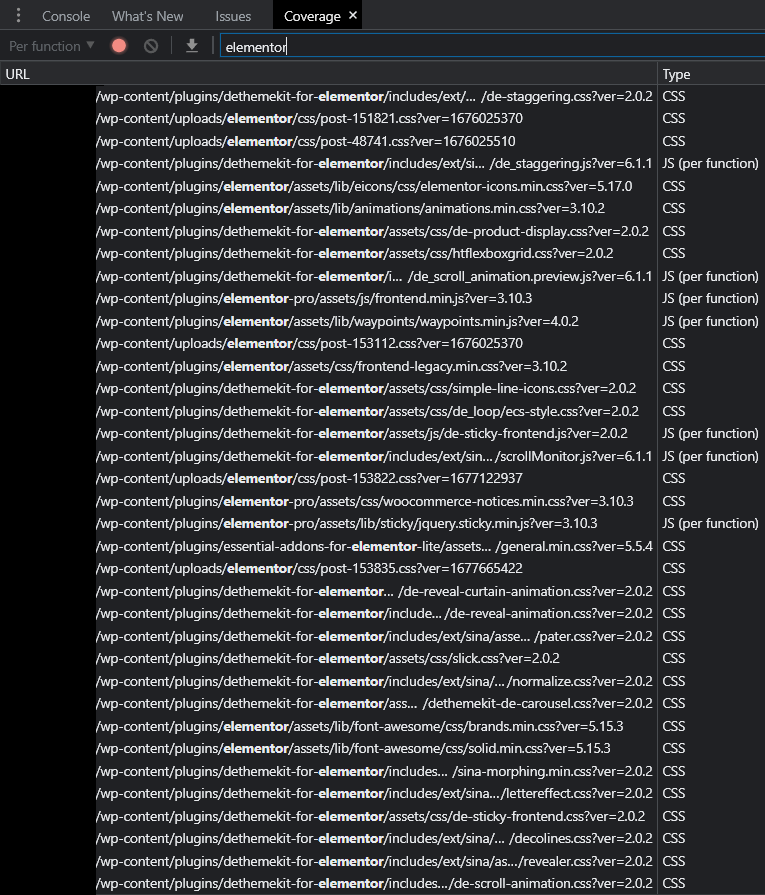
It’s true, Elementor adds more CSS/JavaScript than Gutenberg. But it usually only becomes a larger issue when you install even more Elementor plugins and don’t properly optimize the site:
Since my blog is about WordPress speed, I replaced Elementor with GeneratePress which is more lightweight. However, I’m not here to convince you to do that. You can still get excellent PageSpeed scores with Elementor, it just requires extra steps and knowing what to look out for.
Hope this helps (lmk if you have questions).
- Activate Elementor Experiments
- Change CSS print method to “external file”
- Disable default fonts/icons
- Host fonts locally using woff2
- Preload fonts
- Leave Google Fonts load as “swap” (if using Google Fonts)
- Disable Gutenberg’s wp-block-library
- Remove unused CSS with Elementor exclusions
- Use transform + translate in animations
- Code your header/footer in CSS
- Delay JavaScript with Elementor exclusions
- Test plugins for CSS, JS, high memory usage
- Disable plugins where they’re not used
- Use less Elementor widgets/columns
- Use hosting with fast CPUs, RAM, storage
- Configuring hosting settings for Elementor
- Use FlyingCDN with FlyingPress (or similar)
- Preload viewport images and exclude them from lazy load
- Lazy render Elementor sections
- Remove bloat, database bloat, unused modules
1. Activate Elementor Experiments
Head to Elementor → Settings → Experiments, then activate the following:

Inline Font Icons – font icons (i.e. Font Awesome + eicons) will load inline as SVGs without loading the entire library. This means less CSS requests and render-blocking CSS issues in PSI.
Lazy Load Background Images – you originally had to use an optimization plugin that came with a “lazy-bg” helper class (or similar) and add it to your background images. This is easier.
Optimized DOM Output – addresses avoid an excessive DOM size item in PSI by removing unnecessary div wrappers (elementor-inner, elementor-row, and elementor-column-wrap).
Improved Asset Loading – only loads lightbox and screenful libraries, the dialog library, and share links library when they’re being used on a page, resulting in less JavaScript on your site.
Improved CSS Loading – only loads widget CSS and animations where they’re being used (while loading them inline), resulting in less CSS and render-blocking resources on your site.
Usage Data Sharing – sharing data with plugin developers requires a small amount of server resources which are used to send the data. Therefore, I recommend disabling this in all plugins.

2. Change CSS Print Method To “External File”
While there are pros & cons for each, external CSS files can be cached and they don’t increase the size of HTML. You can test the results for your site, but I generally recommend external file.

3. Disable Default Fonts/Icons
In the next couple steps, we’re going to only load fonts you need (locally using woff2) while preloading them. And the first step is to disable both Google Fonts and Font Awesome icons.


When changing font/CSS settings, you should regenerate CSS & data in Elementor’s Tools settings, then test results in a Waterfall chart like GTmetrix or Chrome Dev Tools. You can immediately tell if fonts are hosted locally, using the faster woff2 format, and the brown bar in GTmetrix indicates blocking time which can be reduced via preloading.

4. Host Fonts Locally Using woff2
If fonts.gstatic.com or other third-party fonts load on your site, host them locally instead.
Step 1: Go to the Google Fonts website (or another font site) and download your fonts. Make sure you only select the weights you need since too many weights will increase the file size.
Step 2: Convert them to woff2 using CloudConvert (woff2 files are smaller than .ttf).
Step 3: Upload the fonts as custom fonts (Tony Teaches Tech has a video tutorial). If you’re not using Elementor Pro, OMGF downloads them automatically when you click “save & optimize” in the settings. It can also load fonts early (preloading them) or you can choose not to load them at all [screenshot]. Web Squadron has another video tutorial if you need more clarification on this.

5. Preload Fonts
The final step is to preload fonts loading above the fold.
Copy their files names, then preload them which you can do in most optimization plugins. You should also preload eicons and Font Awesome Icons if you use them. Once fonts are preloaded, you should see blocking time decrease (which is shown as the brown bar in the Waterfall chart).

Check your Console report for errors since preloading unused fonts decreases performance.

6. Leave Google Fonts Load As “Swap” (If Using Google Fonts)
Setting Google Fonts Load to “swap” fixes ensure text remains visible during webfont load. However, Font Awesome recommends font-display: block since it makes them non render-blocking. You can also change font-display property in Elementor Pro’s custom fonts. Zach Leatherman has a detailed analysis if you want to dive into definitions and pros/cons of each.

To add font-display: swap manually, find your font’s CSS file or search for the font using String Locator if you’re not sure where it’s located. Then simply add font-display: swap to the font face.
@font-face {
font-family: "Lato Regular";
font-weight: 300;
font-style: normal;
src: url("fonts/Lato-Regular-BasicLatin.woff2") format("woff2");
font-display: swap;
}
7. Disable Gutenberg’s wp-block-library
Since you’re using Elementor, you can disable Gutenberg which adds an extra CSS file to your site (/wp-includes/css/dist/block-library/style.min.css). You can find this in your source code:

You can use the Disable Gutenberg plugin or the script manager in Perfmatters. If you’re only using Gutenberg in certain sections of your site, both options let you control where it’s loaded.

8. Remove Unused CSS With Elementor Exclusions
The fastest way to remove unused CSS is with FlyingPress, Perfmatters, or LiteSpeed Cache.
WP Rocket’s is slower because it loads used CSS inline instead of a separate file. This is bad because it increases HTML size and can’t be cached. While nearly every single optimization plugin and “speed expert” agrees separate file is better (including Vikas Sharma who is very active in Facebook Groups), WP Rocket seems more interested in scores over browsing speed.

Regardless of which plugin you use, you’ll need to add Elementor exclusions.
Exclude Flexbox container stylesheets:
/wp-content/plugins/elementor/assets/css/frontend-lite.min.css
/wp-content/plugins/elementor-pro/assets/css/frontend-lite.min.css
Exclude sticky menu selectors:
#elementor-device-mode
.elementor-sticky--active
This is what it looks like in Perfmatters. For used CSS method, file is worse for scores, but faster for visitors. For stylesheet behavior, remove is fastest but you’ll need to exclude files/selectors if they break your site. And if “remove” is causing too many issues, “delay” is the next best setting.

Some plugins like WP Rocket have documentation on how remove unused CSS works with specific settings, but there are no Elementor-specific exclusions. If something on your site is breaking, right click it and inspect it in Chrome Dev Tools. Find the file (or CSS selector) and exclude it. You can also do this when delaying JavaScript in step #11.
9. Use Transform + Translate In Animations
Not that I endorse animations, but use transform + translate to prevent layout shifts (CLS).
You can use Happy Addons to add these. CSS transform lets you change the width/height of animations while CSS translate lets you move elements around without causing layout shifts.

10. Code Your Header/Footer In CSS
Since your header/footer load across your entire site, they should be lightweight, especially your header because it loads at the top. CSS is much more lightweight than Elementor’s code. After doing this, “Elementor” appeared about 150 times in my source code (compared to 2,008).

I hired WP Johnny to do this, but he’s a busy guy. My developer (Pronaya) can also do this who you can hire through his freelancer profile. I’ve worked with him for 10 years so yes, he’s legit. He lives in Bangladesh so there’s a time change, but his communication has always been 100%.
This is also part of Vikas’ recommendations:

11. Delay JavaScript With Elementor Exclusions
When using WP Rocket or the “delay all JavaScript” setting in plugins like Perfmatters and FlyingPress, you’ll usually need to exclude Elementor files or it could break your site. You can also use Flying Scripts to add JavaScript files manually, but “delay all” is usually more powerful.
Perfmatters has an exclusion list and so does WP Rocket. Check the plugin’s documentation since “delay all” doesn’t play nicely with Elementor unless you exclude files. Perfmatters also says it “might vary slightly based on the elements and templates you’re using in Elementor. If you’re not using a lot of animations, you might not need any exclusions for Elementor at all.”
Elementor:
jquery.min.js
jquery.smartmenus.min.js
webpack.runtime.min.js
webpack-pro.runtime.min.js
frontend.min.js
frontend-modules.min.js
elements-handlers.min.js
elementorFrontendConfig
ElementorProFrontendConfig
imagesloaded.min.js
Elementor search:
webpack-pro.runtime.min.js
webpack.runtime.min.js
elements-handlers.min.js
jquery.smartmenus.min.js
Elementor Pro
a/jquery-?[0-9.](.*)(.min|.slim|.slim.min)?.js
/jquery-migrate(.min)?.js
/elementor/
/elementor-pro/
/wp-includes/js/imagesloaded.min.js
ElementorProFrontendConfig
elementorFrontendConfiga
This is what it looks like in Perfmatters:

If you want to add JS files manually, open your “third-party code” and “remove unused JavaScript” reports in PageSpeed Insights and start there. I also have a list of JS files to delay.
You can use both defer/delay JavaScript at the same time, but just like you need to exclude files in other steps, you may need to do the same when deferring JavaScript while also excluding jQuery. Check your Console report in Chrome Dev Tools for errors.
12. Test Plugins For CSS, JS, High Memory Usage
This is the “trap” I was talking about.
Install the wrong plugin and it can add a ridiculous amount of CSS/JavaScript which you can check in the Chrome Dev Tools coverage report (or Perfmatters script manager). While most of these files are related to DethemeKit, even Elementor Pro adds quite a bit of CSS/JavaScript.
Plugins running ongoing background tasks aren’t good since they increase memory usage. This is common with security, image optimization, analytics, backup, and some SEO plugins. Even Elementor increases memory usage (that’s why I don’t suggest using it on shared hosting).
WP Hive is great for telling you whether a plugin increases memory usage. Just install the Chrome Extension, browse the WordPress plugin repo, and it will tell you on the right side. However, take “minimal impact on PageSpeed” with a grain of salt since it seems to only test plugins out of the box. But once you start adding content with Elementor, it does impact scores.

Pretty much every Elementor plugin also uses jQuery. You can see this by enabling display dependencies in Perfmatters, view the script manager, and scroll down to Misc → jQuery:

There’s also Query Monitor and my list of slow plugins.
| Plugin | Category | Memory Impact | PageSpeed Impact |
|---|---|---|---|
| All In One SEO | SEO | x | x |
| Broken Link Checker | SEO | x | ✓ |
| Disqus | Comments | ✓ | x |
| Divi Builder | Page Builder | x | x |
| Elementor | Page Builder | x | x |
| Elementor Premium Addons | Page Builder | ✓ | x |
| Elementor Pro | Page Builder | x | x |
| Elementor Ultimate Addons | Page Builder | ✓ | x |
| JetElements | Page Builder | x | x |
| Jetpack | Security | x | x |
| NextGEN Gallery | Gallery | x | x |
| Popup Builder | Popup | x | x |
| Site Kit by Google | Analytics | x | ✓ |
| Slider Revolution | Slider | x | x |
| Social Media Share Buttons | Social Sharing | ✓ | x |
| WooCommerce | WooCommerce | x | x |
| Wordfence | Security | x | ✓ |
| wpDiscuz | Comments | x | x |
| WPML | Translate | x | x |
| Yoast SEO | SEO | x | ✓ |
13. Disable Plugins Where They’re Not Used
Elementor plugins are notorious for loading across the entire site.
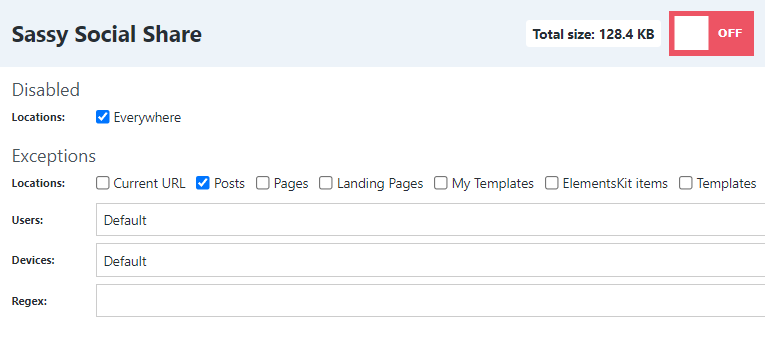
If you only need them on specific pages/posts, you can reduce CSS/JavaScript by unloading them in Perfmatters or Asset CleanUp. I use Perfmatters since it has a lot more optimizations.
Once you’ve enabled the script manager (Settings → Perfmatters → Extras → Script Manager), go to the script manager settings and enable testing mode. This lets you test the script manager without it breaking your site, but remember to disable it when you’re ready to publish changes.

View the script manager and unload plugins where they’re not used (everywhere but pages, posts, current URL, Regex, etc). This obviously depends on which plugins you use and where.

14. Use Less Elementor Widgets/Columns
This video by Oooh Boi has some great tips for using less Elementor widgets/columns which results in less code. Definitely worth watching the full 15 minutes if you haven’t seen it already.

Main part starts at 3:23.
Elementor also has a video on this:
15. Use Hosting With Fast CPUs, RAM, Storage
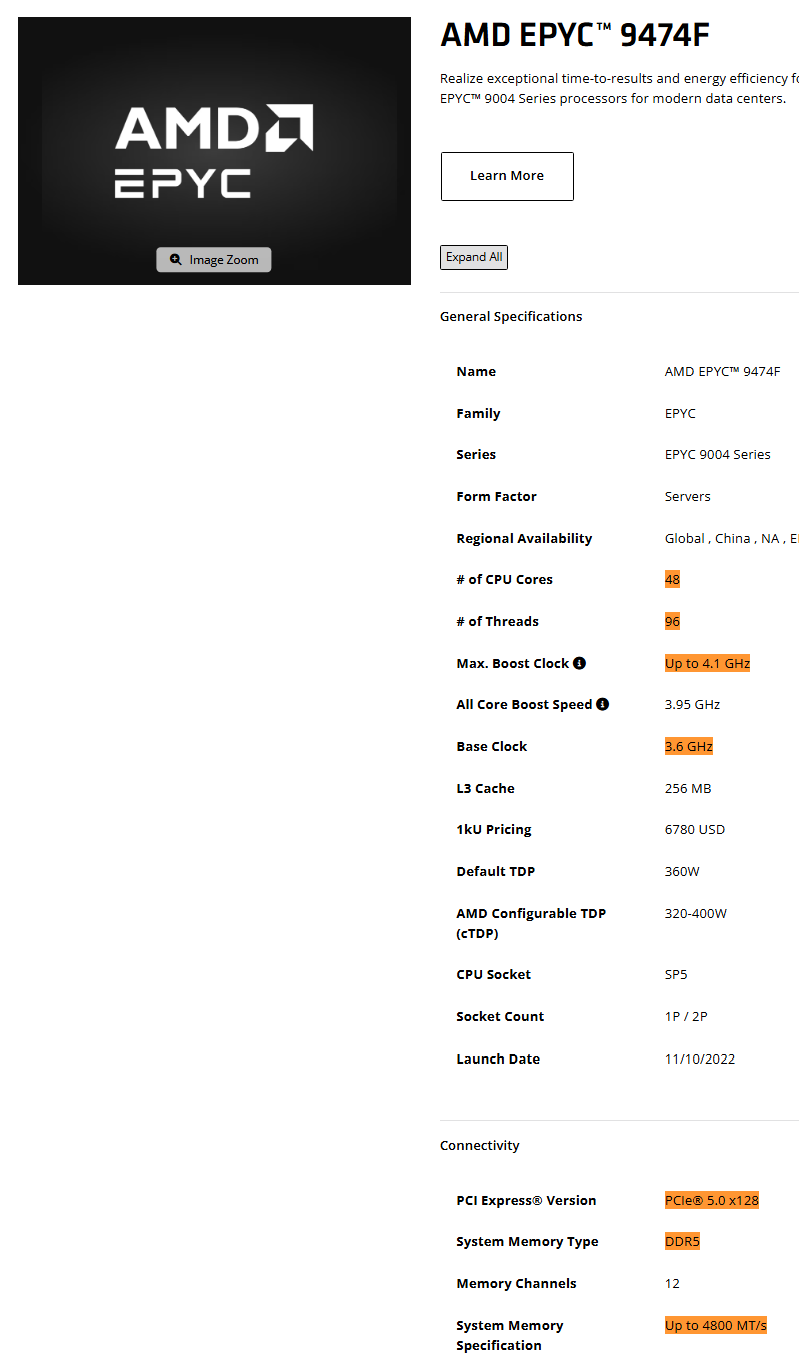
Use a host who is transparent about their hardware to ensure they use fast CPUs on PassMark (the industry standard for measuring CPU performance) with DDR5 RAM + PCIe 5.0 NVMe SSDs.
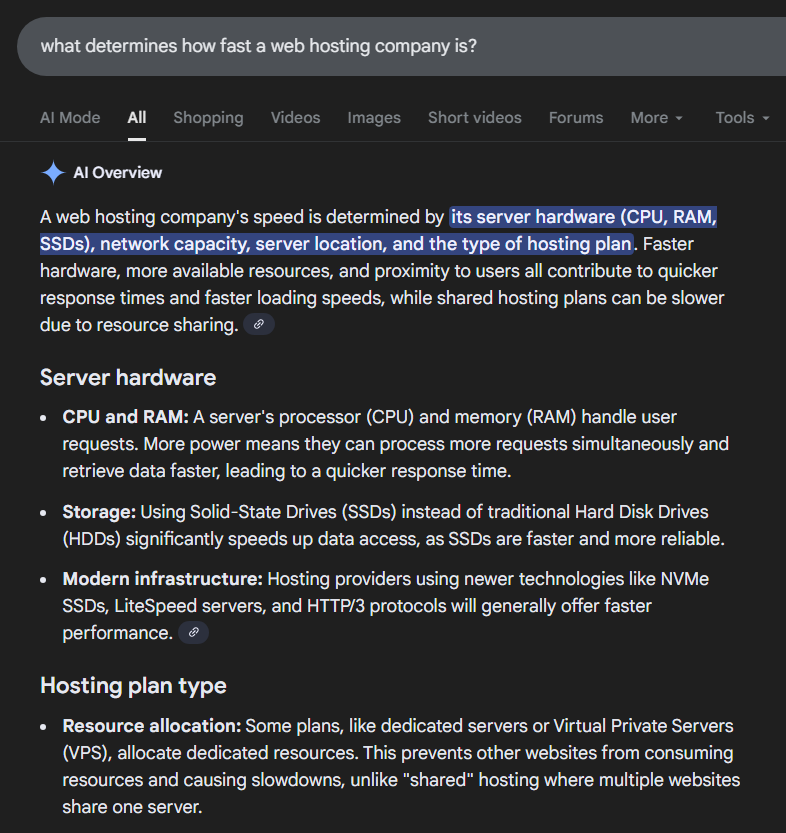
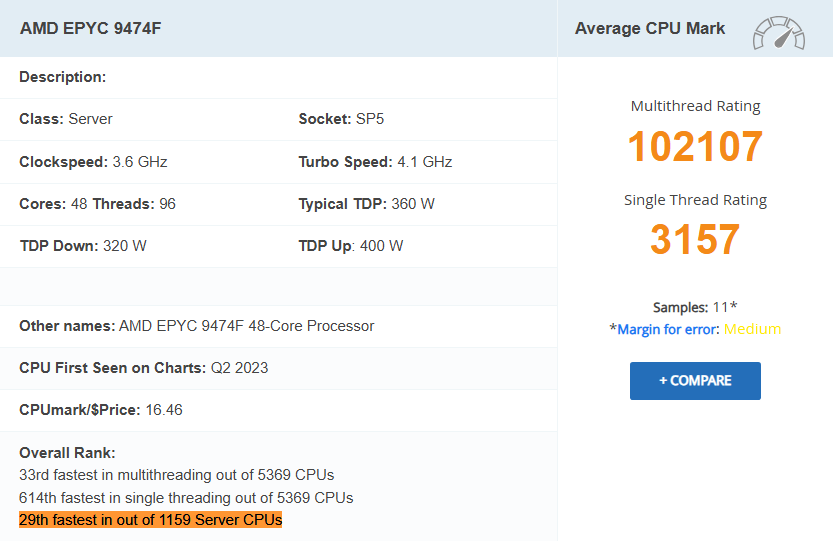
I use AMD EPYC 9474F CPUs from ScalaHosting which are 31st/1178 fastest (top 2.5%) with DDR5 RAM + PCIe 5.0 NVMe SSDs (listed on ScalaHosting and AMD). I also use their VPS which uses dedicated resources with no limits unlike Hostinger + SiteGround who use hidden limits on CPU usage and disk I/O to make you constantly upgrade with 503 errors or high CPU usage.
Which means you’re getting fast hardware and true dedicated resources.
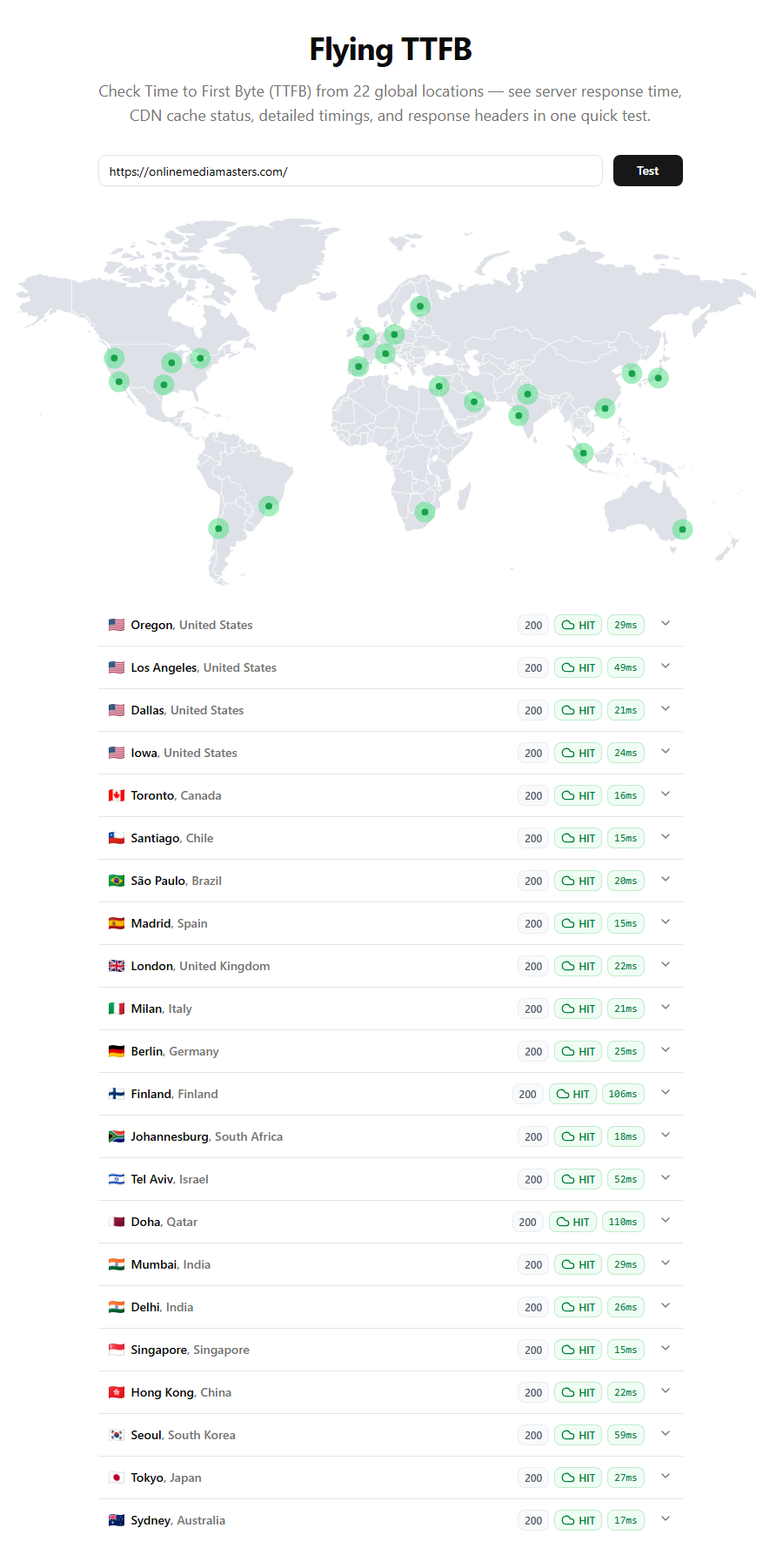
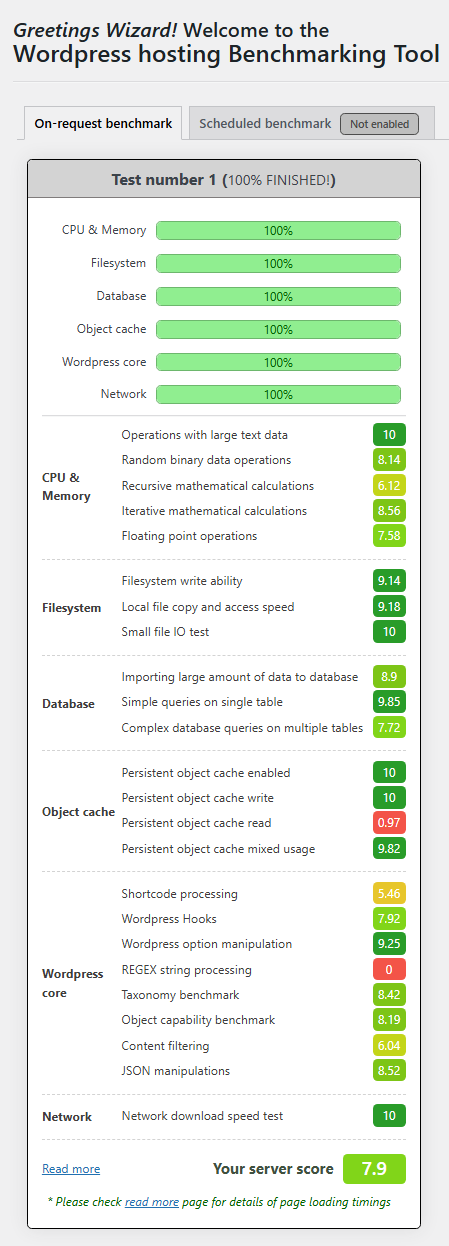
I thought Rocket.net (my previous host) was fast until I saw they use CPUs from 2013 (masked by Cloudflare Enterprise) with shared resources. So when I replaced Cloudflare Enterprise with FlyingCDN, then Rocket.net’s outdated hardware with ScalaHosting’s, my wp-admin + frontend were ~2x faster with better scores in Hosting Benchmark + PHP Vitals with a ~50ms global TTFB.
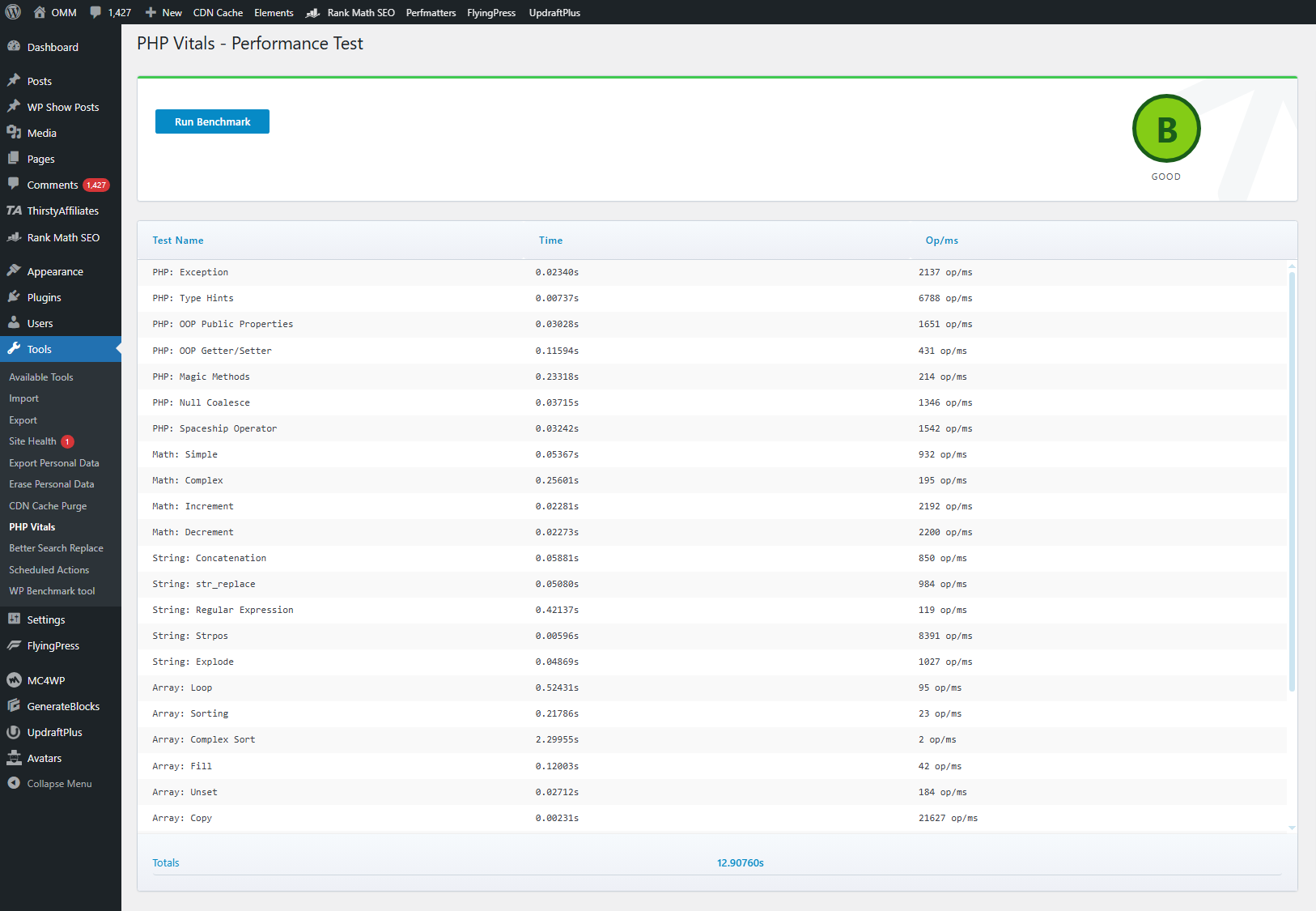
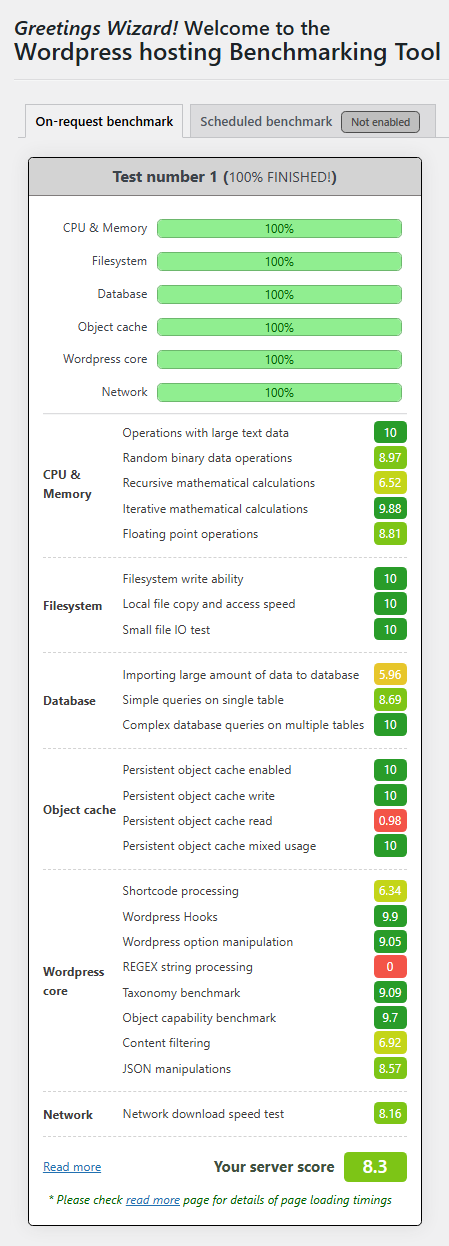
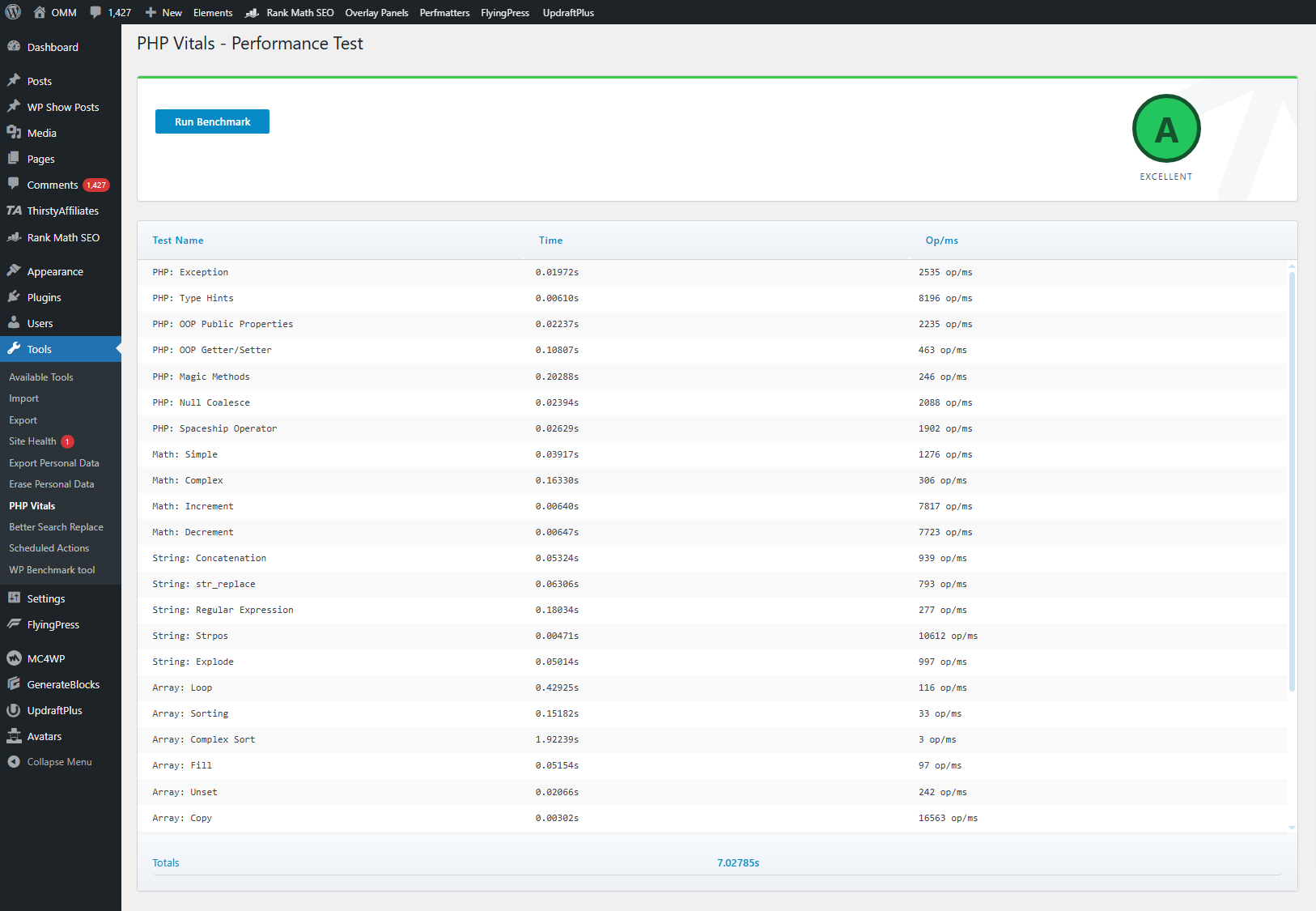
Not to mention Rocket.net (and A2 Hosting + FastComet) were acquired by hosting.com who falls under World Host Group brands and were described as “EIG on steroids” and “the worst.”

Other hosts backed by private equity include Kinsta, WP Engine, LiquidWeb, Hostinger, GoDaddy, and Newfold Digital brands which have their own problems and I would run from.
And unlike Cloudways’ poor performance from bloated overhead, outdated technology (Varnish), and a poor Cloudflare Enterprise, ScalaHosting uses SPanel which is basically an upgraded cPanel with OpenLiteSpeed, full root access, better resource monitoring, and it’s significantly more lightweight since it uses ~1 less core + 8x less RAM vs. cPanel’s requirements.
A 4 CPU core + 8GB RAM server is $118/mo on Cloudways Vultr High HF, $100/mo on SiteGround cloud hosting, and ~$36/mo on Scala’s Build #2 VPS.
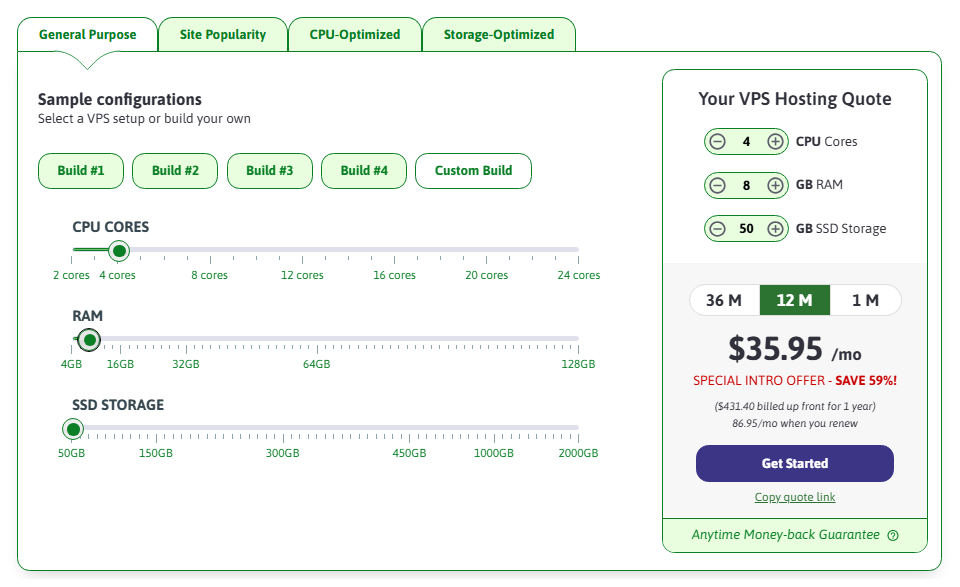

Managed WordPress hosting is a joke. It’s a phrase used to mask slow hardware, limited resources, and give you tools so YOU can manage your website yourself while they sit back and charge you up the wazoo.
16. Configuring Hosting Settings For Elementor
Some of these are found under Elementor → System Info, but you’ll want to open up your hosting dashboard and configure the following (obviously some of them depend on your host):
- PHP Version – higher versions are faster, but make sure plugins are compatible.
- Memory limit – Elementor recommends 768 MB for best performance. Some hosts like Cloudways use PHP-FPM and let you change PHP-FPM memory limits.
- Redis/Memcached – Redis has advantages, and Redis Object Cache Pro is even better. Once enabled in your hosting account, you may need to connect it using your cache plugin (LSC/W3TC) or a Redis plugin. See your host’s documentation.
- Caching layers – if they have something like Varnish or Nginx caching, use it.
- Cron Jobs – replace wp-cron with a real cron job (most hosts have documentation on this). Aim for 5 or 10 minute intervals since something like “60 minutes” means all scheduled tasks in the past hour will run at the same and can cause CPU spikes.
- Hotlink protection – stops people from copying your images onto their website when they’re still hosted on your server (can be enabled in your host/Cloudflare).
- TLS – if your host has TLS settings, use TLS 1.3 and set minimum version to 1.2.
17. Use FlyingCDN With FlyingPress (Or Similar)
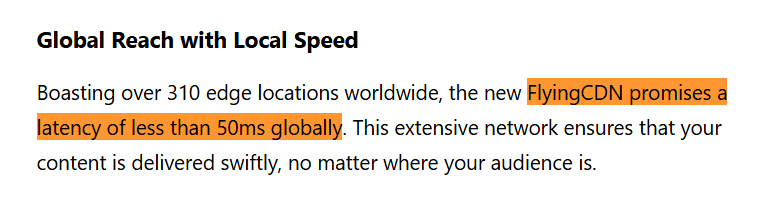
FlyingPress is already better than WP Rocket, and FlyingCDN uses Cloudflare Enterprise so you’re not tied to using a host just because they use it (e.g. Cloudways and Rocket.net). Plus, FlyingCDN averages a 50ms global latency and includes all major Cloudflare Enterprise features.

18. Preload Viewport Images And Exclude Them From Lazy Load
Above the fold images should be excluded from lazy load or it adds resource load delay and hurts LCP. They should also be preloaded to make them high priority which also improves LCP.
The easiest way is preloading critical images in Perfmatters or FlyingPress. Just set the number of images that usually load above the fold (usually 2-3) and both are done automatically. Other plugins make you exclude images by URL or class, then manually preload images which can be time consuming. There are plugins to help, but it’s still more work than Perfmatters/FlyingPress.
LiteSpeed Cache and WP Rocket make it relatively easy to exclude images from lazy load, but won’t preload them. You could also use a plugin to add classes to Elementor to make this easier.
19. Lazy Render Elementor Sections
You’ll need FlyingPress or LiteSpeed Cache to do this.
Lazy render is like lazy loading images only for any element on the page using CSS selectors. While #footer and #comments are both common, you can also lazy render Elementor sections.
View your site, then right click the Elementor section you want to lazy render. Inspect it in Chrome Dev Tools, right click the code, copy the CSS selector, and paste it into FlyingPress/LSC.


20. Remove Bloat, Database Bloat, Unused Modules
Here’s a summary:
- Remove bloat using FlyingPress, Perfmatters, or Debloat.
- Use the Disable WooCommerce bloat plugin for WooCommerce.
- Remove database bloat (including unused tables) with WP-Optimize.
- Disable all unused modules/settings in plugins if you don’t use them.
- Only allow Heartbeat when editing pages/posts (source: Perfmatters).
The FlyingPress bloat settings should look something like this:

The problem with cleaning your database with cache plugins is they don’t take backups (WP-Optimize takes them via UpdraftPlus), they delete all post revisions (WP-Optimize can keep a few), and they don’t remove unused tables left behind by old plugins (while WP-Optimize does).
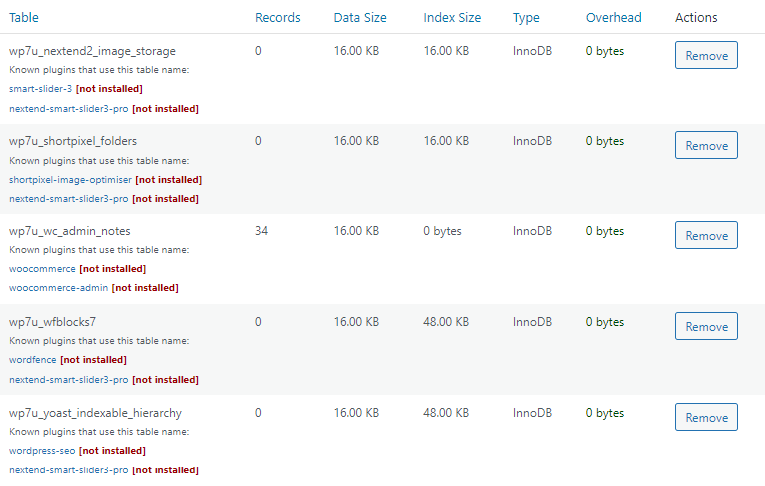
Ultimate Addons, Premium Addons, Rank Math, and many other plugins are module-based, meaning you can deactivate features you don’t use. WP Johnny also found Ultimate Adds For Elementor and uses too many autoloads, so again, you gotta be careful which plugins you use.

Conclusion: Elementor Is Slow, But Your Site Doesn’t Have To Be
My blog is all about speed so I use GeneratePress (Elementor wouldn’t make sense for me).

Another post by Vikas in case I didn’t cover everything (from 2011 but still relevant):

Why is my Elementor website slow?
Elementor adds extra CSS, JavaScript, fonts, and div wrappers to your site. Elementor plugins don't help either, including Elementor Pro which adds even more CSS/JavaScript.
How can I speed up my Elementor site?
You can speed Elementor by activating the performance settings and disabling unused fonts, font icons, and Gutenberg. There are Elementor-specific exclusions when removing unused CSS and delaying JavaScript in cache plugins, both of which can help significantly.
Why is the Elementor Editor slow?
High memory usage slows down the Elementor editor. Besides upgrading memory, a common reason for high memory usage is plugins running ongoing background tasks.
Why is Elementor slow on mobile?
If your Elementor mobile site is slow, try using mobile caching, resize images for mobile with your image optimization plugin or CDN, and reduce latency with a faster DNS/CDN.
Why is WooCommerce slow on Elementor?
Elementor and WooCommerce both add extra CSS/JavaScript while increasing memory usage. Using a sufficient host with object caching (i.e. Redis) along with full page caching and CDN features like Argo Smart Routing can speed up the delivery of dynamic content.
Cheers,
Tom


